Showing posts with label Lync Online. Show all posts

Saturday, April 11, 2015

Skype for Business Online Release Coming

Skype for Business Online is coming around the corner. As many of you know, Lync Online is transitioning to Skype for Business Online. Skype for Business Online will start rolling out on April 14th!

If you read the recent announcement (http://blogs.office.com/2015/03/16/get-ready-for-skype-for-business/) you will know that Skype for Business Online is new solution that delivers on top of the enterprise capability Lync Online. The user experience is enhanced and consistent. I can even say from my personal experience, I have not missed a step as part of the transition.

clip_image002

Enterprise customers may however want to delay pushing the Skype for Business Online client to end users until the organization is ready from a change management perspective. That is not a problem. There are two ways you can control this. First, remember you as the administrator can control where your desktops receive their Office 365 ProPlus updates from; thus you have the ability to delay these updates. Second, there is policy available through PowerShell that will control what client is presented to the user Lync or Skype for Business. More information is located here - http://blogs.office.com/2015/04/01/whats-new-in-skype-for-business-and-how-you-can-take-control-of-updates/

Sunday, February 15, 2015

Office 365 Workload Specific Administration

I have to say, I am super excited about a new capability that is going to be released into Office 365 Administration. On the Office 365 public roadmap blog (http://roadmap.office.com/en-us), it was announced that a new capability called “Workload-specific admin roles” is being released.

For organizations that have been on Office 365 for a long time, they will truly be excited when this new feature has been released? The challenge has been as organizations have transitioned to the cloud, typically people such as the Exchange, SharePoint and Lync administrators have been completely separate people. The challenge has been when in Office 365, for those administrators to do activities they used to do, they would need global admin rights into the Office 365 admin console. This would give them rights to much more admin rights than they typically have had access to. There are ways to mitigate some things, however it was not a good.

With this upcoming release, admins can be broken out to the service they have responsibility for. Thus the SharePoint admin will only have access to SharePoint admin.

image

Sunday, January 18, 2015

Office 365 Performance Optimization

I have say, one of the top five questions I am asked by enterprise customers who are coming to the cloud is “how will my bandwidth change”? For large organizations this can be a complex discussion on understanding how the organization accesses the Internet today and how they plan to change with time with the introduction of devices. With many of the organizations I work with, they have very specific controls to ensure that all inbound and outbound traffic is routed through their networks so they can properly inspect the traffic.

With all that said, there was a recent blog created called “Tune and optimize performance of your Office 365 connection” - http://blogs.office.com/2014/10/29/tune-optimize-performance-office-365-connection/. There some good information here if you are trying to figure out what is the bandwidth impact of Office 365 to your organization.

Network Planning and Performance Tuning reference - https://technet.microsoft.com/library/f97c2f06-0426-443d-8a16-d98abb0da252. This TechNet Article has been around for a long time and is updated on a regular basis. I highly recommend organizations read this as part of their evaluation when going to Office 365. Additionally there are calculators for Exchange, Lync and OneDrive for Business that you should review. There are network tools to analyze traffic, along with best practices and network planning activities.

Finally there is a new Microsoft Virtual Academy on Office 365 Performance Management located here - http://www.microsoftvirtualacademy.com/training-courses/office-365-performance-management. There are numerous modules in here with some really good facts. I really liked Module 7 which was a session on best practices on what some consultants have seen. In it they said there is no perfect number that can be determined before a deployment, however the most impact that they have seen is upwards to 20% new traffic and based on your Internet connection methods remote offices will be most impacted. Additionally I liked Module 8 on Configuring Firewall Whitelisting Planning because this is something that comes up a lot with customers whom I work with.

Saturday, November 15, 2014

Office 365 ProPlus Adding Passive Authentication

There has been a change I have been waiting on that. On the Office 365 Public roadmap it is called “Office 2013 client update to support passive authentication using SAML” - http://office.microsoft.com/en-us/products/office-365-roadmap-FX104343353.aspx.

What is this announcement?

Office 365 ProPlus / Office 2013 will be getting a modification to support 2FA authentication scenarios. This is enabled through the Active Direct Authentication Library (ADAL).

Why is it so important?

There are many customers who require 2FA to authenticate to the Office 365 service. For Office, the Outlook rich client typically comes up a lot because customers want to ensure that users using Outlook use 2FA to receive email. With Outlook today there are scenarios that organizations can implement to ensure there is 2FA with Outlook, however the better long-term solution is to have Office modified to support 2FA directly.

Specifically Office 2013 is changing such that is can support “passive authentication” scenarios in the same way a browser does.

This will enable is a cleaner solution with Office 365 MFA. More importantly it allows for additional support scenarios for organizations who use smart cards (PIV, CaC, etc.) to authenticate to the Office 365 service using the Office 2013 rich client.

What are some facts you should know?

Private Preview Release – Office 365 customers who are in the private preview program can have access to this.

ADAL Authentication – As I mentioned earlier, Office 2013 will be adopting passive authentication in the same way a browser authenticates. If you have AD FS implemented with Office 365, the user will authenticate through that federated trust relationship with Office 365. If you organization requires a second form factor (2FA) for authentication, the user will be required to provide it. A nice side effect of this is Outlook no longer needs to have direct access to the user’s password. Please read this blog for more details on the authentication process - http://office.microsoft.com/en-us/products/office-365-roadmap-FX104343353.aspx.

What Clients are impacted? - Word 2013, Excel 2013, PowerPoint 2013, Lync 2013, Outlook 2013, Publisher 2013, Visio 2013, Access 2013, Project 2013 and OneDrive for Business Sync Client.

Will this work with AD FS Only? – Please review information about other STS providers: http://blogs.office.com/2014/01/30/the-works-with-office-365-identity-program-now-streamlined/ and http://technet.microsoft.com/en-us/library/jj679342.aspx

Office 2010 Support? – No. This solution is for Office 2013 and Office 365 ProPlus.

References

New Announcement – Office 2013 update for SAML and 2FA Auth - http://blogs.office.com/2014/11/12/office-2013-updated-authentication-enabling-multi-factor-authentication-saml-identity-providers/

Original Announcement - http://blogs.office.com/2014/02/10/multi-factor-authentication-for-office-365/

SAML 2.0 Announcement - http://blogs.office.com/2014/03/06/announcing-support-for-saml-2-0-federation-with-office-365/

Outlook Connectivity with MAPI over HTTP Announcement - http://blogs.technet.com/b/exchange/archive/2014/05/09/outlook-connectivity-with-mapi-over-http.aspx

Skype for Business Announcement

There was a big announcement this week that Lync is being rebranded as Skype for Business. Please review the following announcement for the exact details - http://blogs.office.com/2014/11/11/introducing-skype-business/.

What are my takeaways?

  • In H1, Lync will transition its brand to Skype for Business.
  • Skype for Business will be available through Office 365 and/or customers can deploy Skype for Business on-premises. Customers who have Lync on-premises today, “No new hardware is required” is required to support this transition.
  • The user experience will begin to merge such that Skype for Business has a similar experience to Skype.

This is very similar and consistent change that Microsoft did to OneDrive and OneDrive for Business brands. These are very similar solution offerings however there is a different offering for consumers and business. As a result of this change there is a pretty common user experience between OneDrive and OneDrive for Business. OneDrive and OneDrive for Business are not the same implement. OneDrive for Business is specific to Office 365 only. OneDrive for Business has enhanced features to support enterprise business scenarios (supported through SharePoint Online). Customers who are 100% on-premises still have the ability to deploy OneDrive for Business within their SharePoint 2013 on-premises deployments.

Sunday, November 9, 2014

Lync Online Report Updates

Lync Online recently expanded is reporting capability. To date, there are numerous Lync Online reports such as peer-to-peer session report, conferences report, active users report, and audio / video minutes report - http://technet.microsoft.com/en-us/library/dn362827.aspx. All of these reports are available visually through the admin center plus there are REST web services and PowerShell available to pull the data.

Lync Online has just new report called the Client Devices report - http://blogs.office.com/2014/10/17/announcing-lync-online-client-devices-report/. This report provides data about what types of devices are being used to connect to Lync Online.

All of these reports will provide you good insight into how the Lync Online service is being utilized by your end users.

Sunday, May 25, 2014

Lync Online, Exchange Online and SharePoint Online Bandwidth Planning and Estimation

Bandwidth planning comes up a lot with customers who are coming to the cloud. Most customers are initially concerned with understanding Exchange Online bandwidth. There are definitely new email traffic patterns that must be considered (especially if you are retaining the MX record on-premise). This can be remediated pretty quickly.

However the one that requires even more planning and consideration is Lync Online.

Here is the reference for the Office 365 Internet Bandwidth guide - http://technet.microsoft.com/en-us/library/hh852542.aspx. In this article it has references calculators for both Exchange and Lync bandwidth calculators. The Exchange bandwidth tool is fairly straight forward.

The real reason why I am writing this blog is for Lync Online Bandwidth estimation. Today Microsoft does not have a Lync Online bandwidth tool; there is only the on-premises tool. However we have always said when using this on-premises tool if you:

1. Treat Lync Online as your Lync server deployment.

2. Then treat all end users as “external” users.

3. Then model out all the locations for where you have end users.

The first 30 minutes of the Lync Online How to Estimate Bandwidth presentation (http://channel9.msdn.com/Events/Lync-Conference/Lync-Conference-2014/ONLI301) at the recent Lync Conference 2014 has a great discussion of how you should look and understand the traffic. There are several considerations you need to account for when estimating this traffic. I highly recommend sitting down and watching this session.

If you feel I missed on mentioning SharePoint Online, as you may see here - http://technet.microsoft.com/en-us/library/hh852542.aspx - that there is a tool in the works. However if you are a SharePoint person, you can look at many of the existing SharePoint on-premises planning tools, plan out your content acquisition strategy and look at how much content you have today. It comes down to knowing how many upload / download transactions you expect to have at peak times and what is the average file sizes. There can be other considerations for geographically dispersed organizations that again are working with large files. Organizations can look at their current SharePoint on-premise logs to plan.

Saturday, January 25, 2014

Office 365 January 2014 Updates

There were a few releases lately through Office 365 this past month. These are two new features that have been released that I have really liked and help me on a daily basis.

Lync App Voice Commands

As many of you know Lync App has been released on all the major mobile platforms that are out there. A new feature was just pushed out to my phone to allow for hands free commands for Lync.

All you need to do is press the start button and say the following (the word “my” is optional):

“Lync, join [my] next meeting”

“Lync, join [my] current meeting”

“Lync, show [my] next meeting”

“Lync, show [my] current meeting”

"Lync, show [my] meetings”

”Lync, play [my] voicemail”

“Lync, show [my] voicemail”

This is a really basic feature but I love it on a mobile device because it allows me the ability to quickly and safely jump into a meeting.

Reference - http://blogs.technet.com/b/lync/archive/2014/01/23/lync-mobile-update-for-ios-and-windows-phone-viewing-uploaded-powerpoint-presentations-voice-commands-on-windows-phone-and-a-new-look-for-ios7.aspx - this blog also talks about the new iOS App update has updated the user experience. Plus it talks about seeing desktop shares and shared presentations on your mobile device which I have talked about in the past. That is a huge feature as well because you can attend web meetings and see shared content. Huge.

OWA People View

Another new feature just released is the People View in OWA. I have started to play around with this and find it to be really good for the people (like myself) who are “stackers” and have lots of email. With a large inbox, those messages can build up. This allows you to quickly find messages for people whom you talk with the most.

clip_image002

Reference - http://blogs.office.com/2014/01/23/people-view-in-outlook-web-app/

Friday, October 11, 2013

Mobile Lync App Expanded Meeting Capabilities

There was yet again another new announcement this week on Lync App for Windows Phone, iPhone and iPad which can be used with Lync Online.

The big news is the Lync App now supports the ability for attendees to join a meeting without a Lync account (as a guest) using the app. With this capability allows people to use the Lync Audio feature (without having to dial-in) to participate in the meeting. They can see all the content, including desktop sharing on their mobile device. This is huge feature because it allows organizations to easily allow people from outside of their organization to attend meetings without having to dial-in or be on a computer with the full Lync client.

Additionally the Lync App was extended to allow for ad-hoc, multi-party meetings to be initiated by the mobile device.

Reference - http://blogs.technet.com/b/lync/archive/2013/10/08/new-features-available-for-windows-phone-iphone-and-ipad-lync-mobile-apps.aspx

Sunday, October 6, 2013

Lync Online Meetings and Enterprise Compliance Features

In this short blog I am going to capture a few simple facts about how easy it is to create an Online Meeting with Office 365. Plus will I cover a few administrator topics to show you why Office 365 with Lync Online is an Enterprise class cloud service that aligns to Enterprise businesses.

Creating Meetings in Outlook Web Access Calendar

Some people do not know, but is now possible to schedule a Lync Online meeting inside of Outlook Web Access. When creating a meeting just click Online Meeting.

clip_image002

As you can see here, the online meeting link and information was added into the meeting invite.

clip_image004

If you click on the online meeting settings you can see what policies have been set as inviting people to meeting, the default policy for the lobby (which is where attendees go through to attend a meeting), and who can be presenters. Your organization Lync Online administrator has control over this policy and it cannot be overridden. This is an important topic and I will discuss it more at the end of this blog.

clip_image006

Creating an Online Meeting in Outlook

As I mentioned, it is possible to create an Online Meeting in Outlook client. All you need to is click the button.

clip_image008

Once that is done as you can see, the meeting has been created just like in OWA.

clip_image010

If you click on Meeting Options, you will see you have some more options change the default configuration of your Lync Online Meeting. These setting can easily be set during the actual online meeting but sometimes it is nice to have them pre-set just in case you are the presenter and you are running a little late. Additionally, if you like a configuration, you can click Remember Settings.

clip_image012

Interesting note, if you make changes, the Lync meeting URL changes in the invite.

The Lync Online Meeting

I am not going to cover the full Lync Online Meeting experience in this blog. It is suffice to say, there is a lot of features and capabilities that are available to an end user. There are tons of presenter controls to mute/unmute, blog attendees, admit people into the meeting from the lobby, promote attendees to presenters, etc. End users can share their desktop, applications, polling, white-boarding, question and answer, recording, etc. Note that Online Meetings do not have to be created through a calendar, they can be completely ad-hoc. End users can be talking with one another in Lync Online and inviting / drag-and-drop more people right into their conversation. Plus there are Lync Mobile apps that are on Windows, iPhone and Android. This allows people to attend meetings when they are on the go.

For all the information about Lync Online, I recommend reading the Service Description here - http://technet.microsoft.com/en-us/library/lync-online-service-description.aspx.

clip_image014

Adding a Conference Call Phone Number

With Lync Online Meetings by default you have ability to do PC-to-PC audio based meetings. These meetings are multi-party. However your organizations may need to support online meeting for people who need to call in through a phone number. Lync Online supports the ability for Third-Party Dial-in Audio Conferencing Providers (ACP) to be integrated into the Lync Online service. For more information review the Service Description - http://technet.microsoft.com/en-us/library/lync-online-meetings.aspx

Below is a screenshot of where this is configured. You have the ability to identify which users have the ability to add a call number to their meeting.

Once this completed, the ACP phone number and passcode will automatically be added into the online meeting information for the end user.

clip_image016

Lync Online Federation with Other Organizations

Another thing you may consider when configuring Lync Online Meetings for your business is to set up federation. You can configure federation with other organizations that have Lync Online, Lync on-premise or even OCS R2 on-premise. Doing this allows for Lync PC multi-party audio without having to set up a conference bridge. This also enables IM, presence and whole host of other features to allow your organizations to communicate with each more effectively. Below is a screenshot of where you will go to set up Lync Online Federation.

Note this is also where you go allow or disallow integrated public communications with Skype. This is very powerful capability and we ensure you have control over this to protect your organizational data.

Here is some more information about it - http://technet.microsoft.com/en-us/library/lync-online-federation-and-public-im-conectivity.aspx

clip_image018

To extend upon this, Exchange Online also allows organizations to share calendars with each other. This enables organizations with Exchange Online or Exchange on-premise to create an organizational relationship to share calendar information. Doing this will make it extremely easy for an end user to look at calendar free/busy and then create an Online Meeting with partner organizations. Below is a screenshot showing where you can set up calendar federation. Note your organization can also allow sharing by individually externally instead of using federation. For more information about the policies for external calendar sharing, please read the following - http://technet.microsoft.com/en-us/library/jj916670(v=exchg.150).aspx.

clip_image020

Additional Configuration for Meetings

The Lync Online administrator also has the ability to add organizational information into the online meeting invite template. You can incorporate your company logo, create a help URL to provide any custom instructions, you can provide a URL to legal compliance information and even put in a customer footer message. All important things for an enterprise service. Below is a screenshot of where this would be configured.

clip_image022

Lync Online Meeting Policy

Here is another really differentiator of Lync Online Meetings when compared to other cloud services. With Lync Online you can create corporate policies on what you will allow with Online Meetings. These cannot be overridden by end users. For instance you can use the Conference Policy (http://technet.microsoft.com/en-us/library/gg413019.aspx) to control things such as:

  • Whether you allow anonymous participants
  • What level of participation you all external people to participate – you may limit it
  • Whether you allow conferences to be recorded
  • Whether you allow video
  • You can control which features you will even allow – for instance you can shut off Polling, Q and A, whiteboarding, etc.
  • Whether you allow desktop sharing
  • You may want to block file transfers
  • Etc.

This is important because enterprise data must be protected. There is tons of data being communicated in Online Meetings and there are legitimate business reasons why communications need to be controlled. You can create policies that align to your data loss prevention policies you are creating across Office 365.

If you want to explore more policies to create for Lync Online, I highly recommend you read this http://technet.microsoft.com/en-us/library/dn362831.aspx and http://technet.microsoft.com/en-us/library/dn362817.aspx. There are more considerations other than just Online Meetings.

Lync Online Meeting Archiving

In addition to policy, another important feature of Lync Online Meetings with Office 365 is archiving. Luckily with Office 365 Lync Online is integrated with Exchange Online; again a differentiator with other cloud services.

To archive peer-to-peer instant messages, multiparty instant messages, and content upload activities in meetings a Legal Hold with Exchange Online would be created. You can specify the types of data to be captured in that legal and as you can see below, there is a Lync Items option. This will ensure the data is captured along with calendar items. Below is a screenshot to show you where that is accounted for.

clip_image024

Additionally, if you have very strict rules around being legally required to preserve electronically stored information, you have the ability to turn off features. For instance within Lync Online and create policy to turn of features that are not captured in archiving.

clip_image026

In my blog posting here - http://www.astaticstate.com/2013/07/office-365-compliance-solutions.html - I explored many of the features of Legal Hold as there is a lot things to be considered.

For more information Lync Online archiving you can also read the Service Description here - http://technet.microsoft.com/en-us/library/lync-online-security-and-archiving.aspx.

In Closing

I feel like there is a lot more I can cover around why Online Meetings as they are great in Office 365.

Friday, October 4, 2013

Lync Online Reports Updates

Back in July, Office 365 and Lync Online released some initial reports. I posted some information about it here - http://www.astaticstate.com/2013/07/new-lync-online-reports.html.

I was just announced that this reporting capability has been expanded - http://blogs.office.com/b/office365tech/archive/2013/10/03/visualize-lync-usage-for-your-business-with-new-reports.aspx. These are new visual reports that used to only be available through PoweShell or REST Services. Now you have visual reports on active users, audio/video minutes, conference minutes, P2P sessions, P2P conferences, etc.

This provides good report information that can be presented to your management to show how the Lync Online service is being used.

This is really valuable information as it allows customers to get a handle on Lync utilization. This can be helpful information for tweaking your network configuration to support Lync Online services. For more information on more on network planning for Lync Online, recommend you read the following - http://technet.microsoft.com/en-us/library/hh852542.aspx and utilize this tool http://www.microsoft.com/en-us/download/details.aspx?id=19011.

Force Lync Web App Client for a Web Meeting in Lync Online

Forcing Lync Web App Client

I learned a neat trick the other day. Let’s say you have a meeting you need to schedule with Lync Online (this works on-premise too) that you need to force the attendees to meet over the browser (Lync Web App Client). Well this is actually pretty simple, all you need to do is modify the meeting URL. Just add ?sl=1 to the end of the URL.

So your URL may be like the following - https://meet.lync.com/tenantname/jsmith/XYZXYZ

All you need to do is change it to be - https://meet.lync.com/tenantname/jsmith/XYZXYZ?sl=1

When a user clicks on the link, they will be forced into the Lync Web App Client. They will not be prompted to install the Lync client.

clip_image002

Considerations

There are some considerations for the presenter on the type of web meeting you are planning to give.

  • Sharing Slides - If the meeting the presenter is showing some slides instead of sharing your desktop or PowerPoint as a Program try using the PowerPoint option. This uploads the PowerPoint into the Lync Online service versus running the slides locally. This has two advantages first you will get better performance. Second no browser add-in is required; a browser add-in is required if you are sharing your desktop or a program. This may be important to you of the meeting audience is outside of your organization and you may not know what computer lockdown requirements they may enforced.

clip_image004

  • Audio - In the web meeting you will most likely need to support audio; an add-in is required and the user will be prompted to add it if it is not there. Like I mentioned, your meeting may be with an external audience that may not support add-ins because they have lockdown requirements on their computers. This is not a problem for Lync Online. You can purchase Audio Conferencing Partner (ACP) that will provide an integrated 1-800 call in service. This will allow anyone to call the 1-800 number be integrated into the Lync Online meeting. The person attending the meeting can simply select the option that they will call the 1-800 number for the meeting versus installing the add-in.
  • Other Stuff – Many of the other features of such as polling, whiteboarding, IMing in the meeting, sharing files, etc. do not require an add-in. If you need to share you need desktop or do a video sharing session, and you must force the web meeting with the browser, an add-in is required. I have provided some references below.

Resources

Here are some good resources.

Friday, August 30, 2013

Office 365 Service Continuity Uptime

There was a recent announcement that Microsoft would publishing their Quarterly Worldwide Uptime - http://blogs.office.com/b/office365tech/archive/2013/08/08/cloud-services-you-can-trust-office-365-availability.aspx

The uptime is published here - http://trustoffice365.com/

I went to the web site today and now see that is being published. For instance today is 8/30/2013 and it stating 99.97%, well better than 99.9% financially backed SLA - http://www.microsoftvolumelicensing.com/DocumentSearch.aspx?Mode=3&DocumentTypeId=37. If you click on the Learn More, it will show you the last four quarters.

Recommend that you read the announcement for more information about it.

Lync Online PowerShell

Lync Online PowerShell

There have been some recent updates to Lync Online PowerShell.

This is just really exciting and really provides administrators more granular control of policies that the organization must adhere to manage information that is being exchanged.

Utilizing PowerShell for management operations does help with doing granular changes to Lync Online across a broad set of users in an automated fashion. You have the ability to:

  • Get information about your Lync Online tenant(s).
  • Get information about your users
  • Manage your audio conference provider
  • Create policies to manage clients. This allow you to do such things as block file transferring, block federated contacts, block calendar information, disable emoticons, disable HTML, disable video - http://technet.microsoft.com/en-us/library/gg425949.aspx. Just a ton of stuff.
  • Create policies to manage conferencing / web meetings. Tons of interesting policies such as controlling ability to record, controlling audio / video, meeting size, etc. - http://technet.microsoft.com/en-us/library/gg413019.aspx.
  • External access and communications policies
  • Voice policies
  • Manage policies for filters and presence
  • Manage privacy policies. End users can set them on the Lync client, but you want to control those policies, centrally you can with Set-CsPrivacyConfiguration.
  • Cmdlets to allow you to managed Unified Messaging with Exchange.
  • Cmdlets to manage meeting rooms. Meeting rooms are self-contained computer appliances that are installed in conference rooms and supply advanced meeting capabilities.
  • Cmlets to manage cell and mobile devices connected to Lync Online.

References

http://technet.microsoft.com/en-us/library/dn362831.aspx

http://technet.microsoft.com/en-us/library/jj994021.aspx

http://blogs.office.com/b/office365tech/archive/2013/08/19/remote-powershell-for-lync-online.aspx

Friday, July 19, 2013

Lync Online July Updates

July Lync Updates

This July 2013, there have been some new releases leases to both the Lync Client and Lync Mobile Clients which are really exciting. These features will be made to Lync Online and Office 365.

These feature updates are truly awesome. They are just further enable to people to communicate better virtually and have more rich web meetings, regardless of the device. It is a true differentiator and shows Microsoft’s commitment to providing an evergreen service to its Office 365 customers.

Some of these features will knock your socks off if you really use Lync a lot.

Embedded Images

The updated Lync client is now supported embedded images. This is super cool. Why? I am a heavy user of Lync. All the time I am IMing with people and I want to show them something really really really quickly. Even those is it really easy for me to share my screen or an application, now I can share an image right into the IM conversation. So quick screenshot, drop it in, and keep on IMing. Love it.

clip_image002

Meetings View

Again something really cool, I do not need to be in outlook to see my web meetings. I can see all my Exchange Online calendar in Lync and then just join the meetings from there. This just shows me how the Office 365 user experience is continuing unifying the user experiences.

clip_image004

IM Mute

Yes. Very cool. I have actually been busted in meetings doing too much IM. Plus I have been leading meetings where people are IMing too much and IM is actually becoming a distraction to a formal web meeting. Now presenters can just block IMing during a meeting.

clip_image006

Question and Answer Manager

Again very awesome. I have run meetings so many times where I want to have formal way to allow people to ask questions and ensure that the person I am responding to knows it is for them. It is can be hard to answer IM questions from 20 people in a meeting. Using the Q&A manager provides a really good capability to run web meetings. This could even be used in concert with the IM Mute feature I discussed above.

clip_image008

Lync Mobile >> Transition to Lync Meeting

Now with Windows Phone, iPhone, or iPad it is really easy to bring others into your conversation and then just hit the call button and start talking. To me, that is a big deal for mobile because typically will not IM as long on a mobile device as I do on a laptop.

clip_image010

Lync Mobile >> Transition to Lync Meeting

Ability to see meeting content view when on Windows Phone and iPhone. That is AWESOME! I no longer have to say, I cannot see the slides, shared application or share desktop because I am mobile. My mobile device can allow me to participate in the meeting.

clip_image012

Lync Mobile >> Meeting Participation

Yes some of those other new capabilities will be consistent to the connecting mobile devices. For instance you have the ability to see your Exchange Online calendar from the Lync App to make it easy to join meetings. Additionally users attending meetings from their Lync mobile app can have their IM muted and participate in Question / Answer discussions.

References

Like I said, Microsoft is going full steam. The features and capabilities being released are aligned to what people want and it is continuing to improve how people communicate.

Tuesday, July 16, 2013

New Office and OWA Apps for iPhone and iPad

New Announcements

Office 365 has again expanded support for iPhone and iPad. There are always been support for ActiveSync for Exchange Online, Lync App, Office Web Apps, SharePoint Online, and OneNote App.

There have been two announcements in June and July 2013 for more solutions for iPhone and iPad. First there was an announcement for Office for iPhone; very similar what users get by default on a Windows Phone. Second there was an announcement for Outlook Web App (OWA) for iPad.

Office for iPhone

Read the announcements, details, and watch a video here - http://blogs.office.com/b/office365tech/archive/2013/06/14/office-mobile-for-iphone.aspx

This capability provides:

  • Integrated log in with your organizational IDs
  • Connect to SharePoint and SkyDrive Pro
  • Word, Excel and PowerPoint (note there is already a OneNote App)

clip_image002

OWA for iPad and iPhone

Hot off the presses, the new Outlook Web App (OWA) for iPhone and iPad. Read the announcements with tons of screenshots and details - http://blogs.office.com/b/office365tech/archive/2013/07/16/owa-for-iphone-and-owa-for-ipad.aspx

This capability provides:

  • Email status notifications
  • Rich email, calendar and contact management
  • Voice commands
  • Information Rights Management support with AD Rights Management Server (AD RMS)
  • Outlook and OWA Apps Support
  • Exchange Online user configuration management
  • And more….

clip_image003

Friday, July 5, 2013

New Lync Online Reports

A lot of organizations have asked for reporting with Lync Online. Microsoft responded by providing some reports to customers which are now available.

If you Global Administration rights to your Office 365 tenant, you will now see some Lync reports are available. You now can see break outs on the number of sessions for IM, audio, video, application sharing, file transfer, web conferences, application sharing, web and dial-in conferences. This is spread across four different reports. This can be really value information to understand how Lync is being utilized and should probably be reviewed on a regular basis.

clip_image001

Here is a screenshot from a tenant that I created. I literally have almost no data <g> however if there was more, it would be showing. You can look at data by day, week or month.

clip_image003

When you click on the View Table button you see a breakout of the numbers that was being viewed.

clip_image005

Office 365 PowerShell

A lot of customers want and need to do automated administration of services provided in Office 365. This is done through PowerShell. With the new Office 365 release, the story around this has become well rounded. The newest release will be supporting for Lync Online PowerShell.
Here are some good references for getting started with PowerShell and Office 365:

Monday, July 1, 2013

Office 365 Compliance Solutions

Introduction

In this blog I am going to show you some really cool stuff Office 365 can do from a compliance perspective across Exchange Online, SharePoint Online and Lync Online. The great thing about Office 365 is that there are compliance solutions built into across all the technologies. There is retention and records management, archiving, journaling, data loss protection, eDiscovery, Legal Hold, Data Loss Protection and Reporting.

In this blog I am going to show several of these features really quickly from a tenant that I created really quickly.

My objective in this blog is to show you really quickly that Office 365 has really strong compliance solutions which will help an organization have confidence in using Office 365. From this blog I suspect you will want to do deeper reading and analysis on topics.

For deeper information, I recommend you read the following articles from the Office 365 Service Descriptions:

There are tons of links for more detailed information off these three links. Start and you will find a ton of information.

Exchange Online Retention Policies

In Exchange Online you have the ability to create what are called Retention Tags. Tags can be:

  • Assigned as default retention tags for the entire mailbox (one has not been set in the screenshot but it is common to require that all email me maintained for X days).
  • They can be applied to specific folders (like default 30 days retention for Deleted Items folder).
  • Users can be given access to them so they can apply the retention policies themselves (personal retention tags). Users can do this in either Outlook or OWA.
  • There are also archive policies which can be used to move items out of the primary mailbox to the archive mailbox for each user.

Organizations have a lot of flexibility to create policies around how long they want email to be retained.

clip_image002

Once you have created all the retention tags that you want to create, you then have the ability to group those retention tags into a retention policy. Those retention policies are then applied to mailbox users. It is possible to create different policies for different users.

clip_image004

As I mentioned, the policies are available in OWA and Outlook. Below is a screen shot of a how a personal policy can be applied in OWA. Also you can see the email will show the user what is the retention policy that is currently applied to the email.

clip_image006

Side note, if you do not see you retention policies immediately because you created a new tenant or made some changes, run following PowerShell command - Set-Mailbox "username" -RetentionPolicy "Default MRM Policy" - http://technet.microsoft.com/en-us/library/dd298052(v=exchg.150).aspx. This will kick in the policy immediately.

In-Place Archiving

With Exchange Online you have the ability to enable what we call the Personal Archive mailbox. With Exchange Online Plan 2 organizations have the ability to store indefinite amount of data in the Personal Archive.

This is huge for organizations who are really trying to save costs.

  • Microsoft provides the ability to stop having to managing on-premise archiving solutions.
  • It is a solution completely integrated into Exchange Online itself. Users do not have to jump around to do different solutions.
  • End users can have direct access to their archived email.
  • Administrators can search, discovery, retain and place items on legal hold ALL IN ONE PLACE.
  • It provides a solution to avoid having PSTs floating around.

As you can see here, all you need to do is add the personal archive mailbox to a user in the EAC.

clip_image008

Once this is done, the end user will see a second mailbox in Outlook and OWA. As you can see in the OWA screenshot the user can the personal archive. They have the ability to search across both mailboxes with a single query. It is very convenient.

Users can then use personal archive polices or rely on corporate archive policies that will move email from their primary to their archive mailbox. And again, the organization can use retention policies across both the personal and archive mailbox to control how long the email will be retained.

clip_image010

Journaling

Note that it is still possible to set up journaling rules if you want to continue to do journal to an existing archiving solution. This can be quickly set up through the EAC.

clip_image012

Roles Based Access Permissions

It should be noted that in Exchange Online you have ability to control who can have access to all these compliance capabilities. This allows organizations to delegate these duties to specific user. This becomes really import when discussing eDiscovery (which I will be talking about later in this blog).

clip_image014

SharePoint Records Management

Since we were talking about retention management in Exchange Online, it is a good time to discuss records management in SharePoint Online.

The new SharePoint Online the Records Center template is now available in Exchange Online. This is the same capability that people are familiar with SharePoint 2013 on-premise.

You have the ability to create Send To Connections in SharePoint Admin Center (screenshot below). This allows you to send a document from any location to the SharePoint Records center.

clip_image016

I am also commonly asked, is it possible to send email from Exchange Online to the SharePoint Online Records Center. The answer is yes, but you will need to write some code that will move the email and all its metadata to SharePoint Online. It is possible to use the new Apps Model in Outlook 2013 and OWA to write code that will move the email do the drop-off library in the SharePoint Online Records Center. If you are using older versions of Outlook you can write new code that move the item. Really it is just a simple is adding a new button the ribbon and then calling the SharePoint Online REST services to move up the email. There are also some third-party solutions providers that provide these solutions.

An important part of doing records management in SharePoint is creating common definitions of content. In SharePoint Online the Content Type Hub is supported; all you need to do is turn it on.
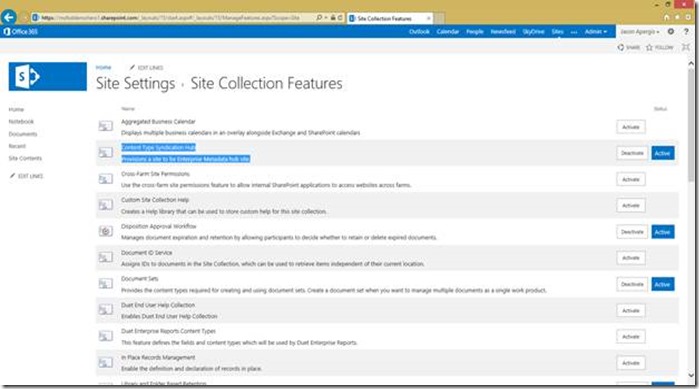
clip_image018

Once you turn on the content type hub, you have the ability to create centralized content type definitions and then publish them to all the site collections you have in SharePoint Online.

clip_image020

Here is the records center in SharePoint Online. The only consideration around doing records management in SharePoint Online is understanding your content acquisition strategy. I recommend that your review SharePoint Online storage here - http://office.microsoft.com/en-us/office365-sharepoint-online-enterprise-help/sharepoint-online-software-boundaries-and-limits-HA102694293.aspx. The overall amount of size of the data as well as thresholds on site collections will require organizations to plan on how many record centers will be utilized.

clip_image022

You have the ability to manage the records center just like SharePoint on-premise. You can see here you can manage content types, retention polices, create organizer rules and run reports.

clip_image024

The content type hub is important because when you send data from a site collection to the records center, you want to make sure that all the metadata for the document is maintained. Why? Because you when the document arrives you will want to use that metadata as part of a file plan.

clip_image026

Here is the details of a content organizer rule. In this one it is looking for a specific content type and then looks at the metadata and will store the document the appropriate location.

clip_image028

Then once in the records center you can use all the metadata to navigate through the documents being archived. You can also use SharePoint Search too.

clip_image030

Finally you can run the report in SharePoint Online to get details about the documents that are being stored.

Note another benefit for the content type hub is that you can centrally define retention rules for content type definitions. So when an item arrives in SharePoint Online, the retention rule that was defined centrally will be applied.

clip_image032

SharePoint Site Policies

Here is another new capability of SharePoint 2013 that is available in SharePoint Online which has to do with retention. It is common that SharePoint because very popular and there is old content that is being managed. Site Policies do help with governance but they also help from a legal perspective if you need old data to be deleted.
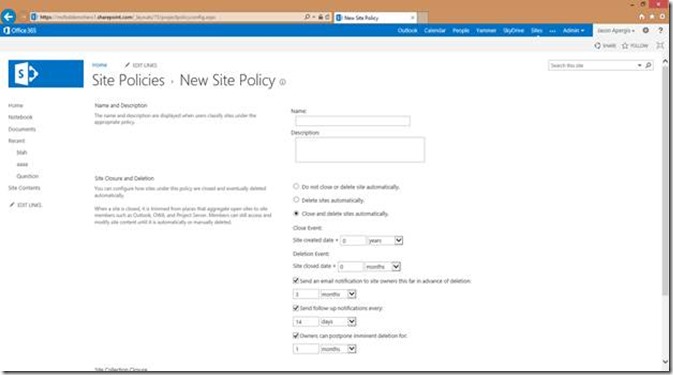
clip_image034

Exchange Multi-Mailbox Search & Legal Hold

Now that we have discussed retention and records management for Exchange and SharePoint Online, let’s discuss Legal Hold.

In Exchange Online there is a built-in capability to do eDiscovery. In the past it was referred to as multi-mailbox search. In the new EAC panel users with permission initiate an eDiscovery and then add a Legal Hold to the items returned in the search.

clip_image036

First you are given a screen to give a name and description to the search.

clip_image038

Next you then scope the eDiscovery search. You can have it go against specific mailboxes or against all of the mailboxes.

clip_image040

Then you can define criteria to find items.

clip_image042

You also have the ability to select which items you want to discover. One thing I like to call out is the Lync items checkbox. This will allow you not only to discuss Exchange items but also Lync items such as instant messages.

clip_image044

This is probably the most interesting screen (below). Once you have defined you query you can then make a decision if you are going to place on a legal hold. There are some options here that are a real game change with the new Exchange Online.

Let’s say that ware going to put the items on legal hold. Here are some options to think through.

  • Indefinite Legal Hold – Pretty simple to understand. If I had not entered any criteria, a legal hold would be placed on the mailbox including Lync items. As new items show up or are deleted by the user they are caught and not deleted until the Legal Hold is released.
  • Query Based Legal Hold – A new capability of Exchange Online is query based legal hold which will only place items that meet the query on legal hold. As new items arrive that meet that query, those items will also be placed on legal hold. This nice thing about this is the entire mailbox does not have to be placed on legal hold.
  • Time Based Legal Hold – As you can also see there is a new option to place a time based legal hold. Think of it as a retention based legal hold. Why is this needed? Many organizations will consider doing this if they business rules that state that no email can be deleted in X days or Y years. The retention policies we discussed early in the blog will place items on retention but a user can still delete items before a retention is complete. A Time Based Legal Hold will complement your retention policies.

As you can see this is really powerful and it is integrated right into Exchange Online. No third solutions needed when you have the archive, eDiscovery and legal hold all in one place.

clip_image046

All of the queries and legal holds are manageable form the EAC. There is an export button in the EAC panel that will generate a PST download of all the data (no more having to connect it to a Outlook <g>).

clip_image048

You also have the ability to see a preview of all the items out of the EAC. If you select preview the search if run again and this screen comes up with allows you to navigate through the data.

clip_image050

SharePoint Online In-Place Hold

Now let’s round out the story with SharePoint Online. First with SharePoint Online Plan 1, there is an In-Place legal hold capability. For SharePoint people, this is actually the eDiscovery and Legal Hold capability that has been around since SharePoint 2010.

When you activate the Hold feature, you will see the Hold features in the Site Collection Administration site. You have the ability to manage all of the legal holds you have run, release them and run reports about those legal holds.

clip_image052

Here is the screen where you can create a search and then optionally place the items on legal hold (or have the items copied to another location).

clip_image054

eDiscovery Center in SharePoint Online

With the new SharePoint Online and if you buy SharePoint Online Plan 2, you have access to the new eDiscovery Center. This is a really powerful capability which allows you to unified eDiscovery and Legal Hold across SharePoint, Exchange and Lync Online all in one location.

On little house keeping item you need to do is add Exchange Online as a source for SharePoint Online to search against.

clip_image056

When you create a new source, you need to select Exchange and AutoDiscover. If you forget to do this, your SharePoint Online eDiscovery Center will not be able to search the Exchange and Lync Online.

clip_image058

Next you need to create a site collection to do all your eDiscovery from. Just select an eDiscovery Center.
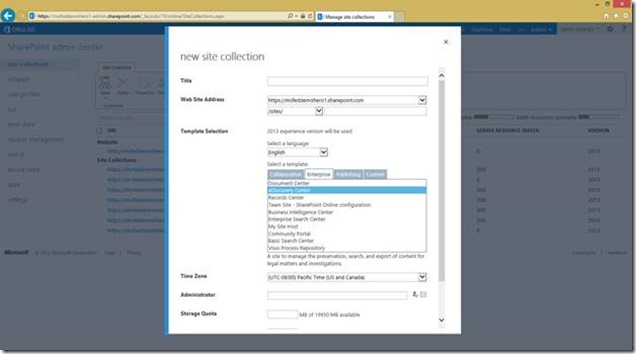
clip_image060

This is what the eDiscovery landing page looks like. From here you can create a new Case.

clip_image062

Once your new case has been created, the first thing you need to do identify data sources for eDiscovery on and if you want if you want to place items on Legal Hold.
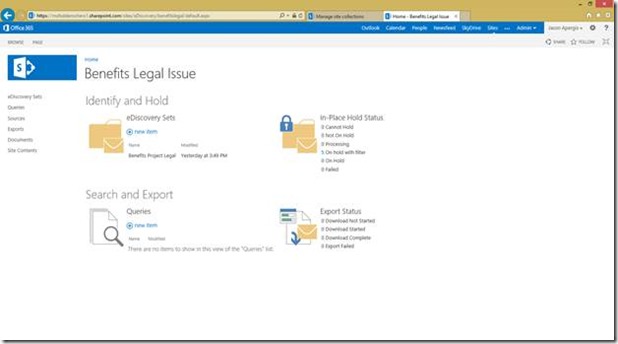
clip_image064

Here is the page where you will create eDiscovery Set. In here you can see in the Sources I have selected several mailboxes as well as some SharePoint sites. I have also put in some simple criteria (yes you can do complex queries with Boolean logic, etc.). At the bottom you can see that I have option to place items on legal hold or not.

One other new capability of SharePoint 2013 in the cloud is the Preservation Library. It is part of SharePoint Online Plan 2. What this does is if a SharePoint item is placed on legal hold, end users can continue to work on those items. In the past the items on legal hold were locked and the user could not continue to work. The Preservation Library will ensure that if there are deletes or edits to those items, they will be captured, maintained and discoverable.

clip_image066

Here is a screenshot of the of the preview results screen. As you cans see here I can see all of the Exchange and Lync Online data returned in the query. If I were to click on any of the items I can actually see the item right there.

clip_image068

Here is a screenshot of the SharePoint Online items in the preview results. You may notice item in there with the GUID appended to the file name. That is actually an item that met the criteria that is coming out to the preservation library.

clip_image070

Here is something also really neat. If you go back to the Site Collections management screen you will see a lock icon next to one of the site collections. This is basically saying that this site collection cannot be deleted because there are legal holds on within it.

clip_image072

As well, if you go to the Exchange Online EAC, you will see a legal hold with GUID as a title. This is the actual legal hold that was initiated from the SharePoint Online eDiscovery Center.

clip_image074

Once the legal hold has been created, you have the ability to create new searches across the items on legal hold. It is very common to place a broader legal hold and then eDiscovery managers will research and refine the data. Again more searches can created to filter down the results.

clip_image076

Discovery managers can preview the data right in these screens.

clip_image078

Finally Discovery managers can export the data from Exchange, Lync and SharePoint Online.

This is really powerful as it provides organizations the ability a one stop shop to do all of the retention, archiving, eDiscovery and legal hold.

clip_image080

Exchange Online DLP

When it comes to compliance with Office 365, there is still more. We have talked about retention, records, eDiscovery and Legal Hold. Now let’s review some of Data Loss Protection capabilities.

For Exchange Online there is the new DLP solution. With this capability you have the ability to create rules that will inspect email data. This is a new capability that is built on top of Transport Rules in Exchange. The references I provided at the beginning of this blog provide additional information on it.

As you can see here I created a simple policy that will check for SSNs that are sent outside of the organization.

clip_image082

Here is where the rule is defined. One really cool feature of this is you can enable what are called Policy Tips. Policy Tips are displayed to users in Outlook as they author their email. The user will be notified they are violating policy before they actually hit the send button. There are additional rules you can define that will allow the user to send if they provide an explanation, have a manager review the email, etc.

clip_image084

Here is the actual DLP rules that I set up. It is a really basic rule that is looking to SSNs going outside of the organization. It provides some notifications if this occurs. There are tons of other options and operations I could apply to manage. For instance I could block the email all together, require it go through an approval, create exceptions for certain people to still send the email, etc. Again this is a really powerful capability.

clip_image086

AD RMS DLP for Office, Exchange and SharePoint Online

Exchange Online continues to support the ability to work with an AD Rights Management Server (ADS) server that is hosted on-premise.

With the new Office 365, there is the ability purchase an add-on that will host AD RMS in the cloud. Here is a good reference - http://technet.microsoft.com/library/en-us/jj585027.

clip_image088

First all you need to do is activate the AD RMS Service.

clip_image090

Once you have done that, for SharePoint Online you just need to turn in on.

clip_image092

Then in a SharePoint Online document library all you need to do is click on Information Rights Management.

clip_image094

Then you can create an IRM policy. When an Office document is downloaded out of a document library, AD RMS rules will be applied to those documents. This is really powerful if you have content that is being stored in SharePoint that you want to ensure if someone downloads the document, that only people who have rights to the document can view it.

clip_image096

Additionally inside of Office, you have the ability to Restrict Access and apply IRM policies directly to Office.

clip_image098

And the same goes for Exchange Online. In either Outlook or OWA users can put on AD RMS rules on email to ensure the email stays within the organization, cannot be printed, forwarded, etc. You can even create DLP rules that work with AD RMS. For instance if a DLP rule catches an email, it can pro-actively assign an AD RMS policy for the user so if the email does go outside of the organization, no one will be able to read it. Again a very powerful capability.

clip_image100

Reports

Finally the last aspect of compliance I will be covering is reporting. We have covered the important stuff to ensure we can retain, discovery, and place data on legal hold. But in legal situations it is also important to know who has had access to the data.

For Exchange Online (along with the Lync data in the conversation view) there is some good stuff.

First there are auditing reports. There are administrator auditing reports that record actions performed by an administrator as well as mailbox audit logging reports. You can know who has had access to specific mailboxes and actions they may have taken on them.

clip_image102

Additionally there are delivery reports and message trace reports in Exchange Online that helps you track messages.

clip_image104

For SharePoint Online there are Audit Log reports that are available. They can be configured at the Site Collection, Site, Library and documents levels. You can create rules on how long the logs are maintained and where you would like them stored at.

clip_image106

Additionally here are the reports that you can run.

clip_image108

Closing

In closing, I hope this was a good read for you. This was a quick hit on a lot of different topics. As you can see Office 365 does have comprehensive solutions built within the platform that does retention management, records management, eDiscovery, legal hold, data loss prevention and reporting.