I have seen a few situations now where customers are looking to transition from Skype for Business Online to Teams, yet they want to initially disable the Teams / Channel capability at the outset. The thinking is, first transition over some of the core IM, presence, and web capabilities first. Then later, once that has been adopted on Teams, start enable Teams / Channels.
There is a governance feature you have which will disable all user’s ability to create Teams / Channels. Basically, you will disable the ability to create Office 365 Groups. Here is a reference - https://support.office.com/en-us/article/manage-who-can-create-office-365-groups-4c46c8cb-17d0-44b5-9776-005fced8e618
Showing posts with label Office 365 Groups. Show all posts
Showing posts with label Office 365 Groups. Show all posts
Tuesday, September 11, 2018


Saturday, November 5, 2016
Introducing Microsoft Teams
Introduction
Microsoft Teams was just announced as being released as Preview to customers.
Microsoft Teams is a continued promise by Microsoft to bring together best of breed capabilities from such solutions as Skype for Business Online, SharePoint Online, Office Online and Exchange Online together to deliver feature rich productivity applications that are not siloed. Office 365 Groups was the first, now we have Microsoft Teams.
Microsoft Teams introduces a new Persistent Chat solution that allows users to see chat discussions over time. The chat discussions can be viewed over time between a group a people. But it is much more than persistent chat. Microsoft Teams will become a hub for teamwork. Which quick integrated capabilities as Skype for Business Online, SharePoint Online and Office Online collaboration around content can initiated. The team experience can also be customized as new tabs can be added to quickly access documents and other cloud services.
General Availability (GA) is set for CY 2017 Q1 with more features and capabilities being added after this.

Where does Microsoft Teams fit in the Overall Office 365 Picture
When you hear about Microsoft Teams you may immediately ask what about SharePoint Teams, Yammer, etc. and then ask when should I use Microsoft Teams. I say the answer depends on what you are trying to accomplish and you should carefully look at how you end users work and what they are try to accomplish. Each solution has its place in the enterprise.
Turning Microsoft Teams On
It is pretty easy to do. In the Office 365 Admin console, just go to Settings >> Services & Add Ins >> Microsoft Teams.
Some Other FAQs
Announcement - https://blogs.office.com/2016/11/02/introducing-microsoft-teams-the-chat-based-workspace-in-office-365/
Video - https://blogs.office.com/2016/11/02/take-an-in-depth-look-at-microsoft-teams-now-in-preview/
Developer Preview - https://dev.office.com/blogs/microsoft-teams-developer-preview
Microsoft Teams was just announced as being released as Preview to customers.
Microsoft Teams is a continued promise by Microsoft to bring together best of breed capabilities from such solutions as Skype for Business Online, SharePoint Online, Office Online and Exchange Online together to deliver feature rich productivity applications that are not siloed. Office 365 Groups was the first, now we have Microsoft Teams.
Microsoft Teams introduces a new Persistent Chat solution that allows users to see chat discussions over time. The chat discussions can be viewed over time between a group a people. But it is much more than persistent chat. Microsoft Teams will become a hub for teamwork. Which quick integrated capabilities as Skype for Business Online, SharePoint Online and Office Online collaboration around content can initiated. The team experience can also be customized as new tabs can be added to quickly access documents and other cloud services.
General Availability (GA) is set for CY 2017 Q1 with more features and capabilities being added after this.

Where does Microsoft Teams fit in the Overall Office 365 Picture
When you hear about Microsoft Teams you may immediately ask what about SharePoint Teams, Yammer, etc. and then ask when should I use Microsoft Teams. I say the answer depends on what you are trying to accomplish and you should carefully look at how you end users work and what they are try to accomplish. Each solution has its place in the enterprise.
- Microsoft Teams – Recommend using when you have a defined group of users who are specifically working on a specific project. Good for small groups of people who need to collaboration in reach time with each other.
- Office 365 Groups – Recommend using when you have small groups of people who share conversations, group mailbox, files and content with each other, however they may not work in real-time with each other.
- Yammer – Recommend using Yammer for across the “company wide” type of conversations and collaboration and communication. Communities can be cross business disciplines.
- SharePoint Online - Recommend using when you have sharing and collaboration across an organization, or longer standing formal content management solutions. Company intranets, repositories, applications, etc. are great for SharePoint Online.
- Skype for Business Online – Continue using it phone calls, instant message, web meeting, etc. Skype for Business Online is available across the Office 365 service and is the “glue” for collaboration.
Turning Microsoft Teams On
It is pretty easy to do. In the Office 365 Admin console, just go to Settings >> Services & Add Ins >> Microsoft Teams.
Some Other FAQs
- Microsoft Teams is a Suite capability and is available through such plans as E1, E3 and E5.
- There are Office 365 Connectors which can be used to receive updates from third party tools and services
- There is a developer API preview available.
- Microsoft Teams is a cloud feature only, and not available on-premises.
Announcement - https://blogs.office.com/2016/11/02/introducing-microsoft-teams-the-chat-based-workspace-in-office-365/
Video - https://blogs.office.com/2016/11/02/take-an-in-depth-look-at-microsoft-teams-now-in-preview/
Developer Preview - https://dev.office.com/blogs/microsoft-teams-developer-preview
Tuesday, November 1, 2016
Office 365 Business-to-Business (B2B) Capabilities
Introduction
This has come up a lot lately and I want to write something
about this. Business-to-business (B2B)
capabilities are available in Office 365 and here are some features can
consider turning on.
Skype for Business OnlineFederation
Skype for Business Online external connectivity (federation) enables a Skype for Business Online user to connect with users in other organizations that use Skype for Business (as well as those that host their own Skype for Business Server on-premises). Federated contacts can see presence, communicate by using IM, and make Skype-to-Skype audio and video calls.
Skype for Business Online external connectivity requires the consent and correct
configuration of both parties of the federation relationship. After the
federation is set up by the administrators of both sides, users in each organization can see presence and communicate with users in the other agencies.
References
- Skype for Business Online Service Description - Federation
- Allow users to contact external Skype for Business users
- PowerShell Commands for External Sharing (optional)
- Configure Federation between Skype for Business Online and Skype for Business on-premises
Public IM Connectivity
Additionally, Skype for Business Online can be configured to
allow communications to consumer Skype.
This can enable communications scenarios with citizens and
constituents. Presence, instant
messaging and video conversations is supported.
References
Exchange Online
Federated Sharing
Federation refers to the underlying trust infrastructure
that supports federated sharing, a method for Microsoft Exchange Online users
to share free/busy calendar data and contact information with recipients in
other external federated organizations or with users that have Internet access.
These include organizations that are also hosted by Exchange Online, or
external Microsoft Exchange Server 2010 or Exchange Server 2013 organizations.
Using organization relationships and sharing policies, Exchange Online
administrators can enable users to send calendar-sharing invitations from
Microsoft Outlook Web App or Microsoft Outlook 2010 or later.
Once configured, an organization will have the ability to coordinate
schedules with people in different agencies or with friends and family members
so that you can work together on projects or plan social events. With Office
365, administrators can set up different levels of calendar access in Exchange
Online to allow businesses to collaborate with other businesses and to let
users share their schedules with others. Business-to-business calendar sharing
is set up by creating organization relationships. User-to-user calendar sharing
is set up by applying sharing policies.
References
- Exchange Online Service Description - Federated Sharing
- Sharing in Exchange Online
- Organization relationships in Exchange Online (business-to-business)
- PowerShell - Federation sharing (optional)
- Sharing policies in Exchange Online (person-to-person)
- PowerShell - Sharing and Collaboration (optional)
Exchange Online Protection
Trusted Partner Messaging
Organizations can set up secure mail flow with a trusted
partner by using Office 365 connectors. Office 365 supports secure
communication through Transport Layer Security (TLS). Agencies can create a
connector to enforce encryption via TLS for business-to-business emails. Additionally,
there is the ability to apply other security restrictions such as specifying
domain names or IP address ranges from which your partner organization sends
mail. TLS is a cryptographic protocol that provides security for communications
over the Internet. Using connectors, you can configure both forced inbound and
outbound TLS using self-signed or certification authority (CA)-validated
certificates.
Note - this solution does not impact the actual end user
experience of sending email between organizations, however it adds an
additional level of security if desired for sending email between agencies.
References
- Exchange Online Secure messaging with trusted partner
- Set up connectors for secure mail flow with a partner organization
- PowerShell - Mail flow (optional)
SharePoint Online and OneDrive for Business
Guest Access
If an organization performs work that involves sharing
documents or collaborating directly with vendors, clients, partners, or
customers, it is possible to use SharePoint Online sites to share content with
people outside your organization who do not have licenses for your
organization’s Microsoft Office 365 subscription. When a site is shared in
SharePoint Online, an email message is sent to the external user containing the
invitation to join the site.
- If the external user is already associated to an Office 365 tenant, that user can use that identity to access SharePoint Online sites and documents that are shared.
- If the external user does not have an Office 365 account, they can access SharePoint Online using Microsoft Account (Your Microsoft account is the one that you use for personal services like Xbox Live, Outlook.com, Windows 8, Windows Phone, and more). Invitations can be sent to people with any type of email address, such as user@gmail.com, user@contoso.com, or user@Comcast.net. External users sign in to the shared site via a one-time association of their email address with a Microsoft account.
Finally, there is solution called Restricted Domain sharing
that you can consider using. This allows
for an Allow/Deny List based on email domain.
At the tenant level, administrators can limit sharing invitations to a
limited number of email domains. This is
a powerful feature that will allow you to set-up controlled external sharing
with your partners.
References
- SharePoint Business to Business Collaboration: Extranet for Partners with Office 365
- Share sites or documents with people outside your organization
- Manage external sharing for your SharePoint Online environment
- Set up and manage access requests
- Create a partner-facing Extranet Site in Office 365
- Restricted Domains Sharing in Office 365 SharePoint Online and OneDrive for Business
- PowerShell - Manage tenant external config (optional)
- PowerShell - Manage External Sites (optional)
- PowerShell - Manage External Users (optional)
- SharePoint Online Service Description - External Sharing: External Access
- SharePoint Online Service Description - External Sharing: Guest Link
What is Office 365 Groups?
Office 365 Groups is the next generation of collaboration solution
available in Office 365 that brings together “best of breed” collaboration
experiences. Office 365 Groups bring
together Exchange Online, SharePoint Online, OneDrive for Business, Office
Online, and Skype for Business Online into a unified end user experience. When a group is created:
- A mailbox is created for the group for shared email
- A shared calendar is created for group meetings and events
- A shared library is created to store files and documents
- A OneNote notebook is created to share project information and meeting notes
- A planning tool is available to organize and assign tasks
Note that Office 365 Groups is a “suite” feature requiring
the acquisition of an Office 365 E3 (or higher) Suite.
Guest Access for Business-to-Business Collaboration
Office 365 Groups supports the ability to invite guests in a
similar manner as SharePoint Online and OneDrive for Business. Office 365 Groups has been available for time
and this is a new feature that US Federal agencies should consider leveraging
for cross-business collaboration.
- Video - Introduction to Office 365 Groups
- Video - Office 365 Groups: Quick tour of new user and admin experiences
- Learn about Office 365 groups
- Office 365 Groups - Admin help
- Introducing guest access for Office 365 Groups
- Guest access in Office 365 Groups
- Guest access to Office 365 Groups - Admin Help
Saturday, May 14, 2016
SharePoint Online Announcements and Futures
There was a bunch of new announcements in beginning of May 2016 in regards to SharePoint Online. Here are my notes and initial thoughts on each.
There are several new sharing and collaboration features that are being release for SharePoint Online. There is a focus making it easy to share information across devices. Some of the new features being released are:
The Future of SharePoint - https://blogs.office.com/2016/05/04/the-future-of-sharepoint/
Keynote - https://resources.office.com/en-us-landing-the-future-of-sharepoint.html
Announcing simple and powerful file sharing and collaboration for Office 365 - https://blogs.office.com/2016/05/04/announcing-simple-and-powerful-file-sharing-and-collaboration-for-office-365/
SharePoint—the mobile and intelligent intranet - https://blogs.office.com/2016/05/04/sharepoint-the-mobile-and-intelligent-intranet/
Power to the people: introducing Microsoft Flow and announcing the public preview of PowerApps - https://powerapps.microsoft.com/en-us/blog/introducing-microsoft-flow-and-announcing-the-public-preview-of-powerapps/
SharePoint and Flow - https://flow.microsoft.com/en-us/blog/sharepoint-and-flow/
Microsoft Flow - https://flow.microsoft.com/en-us/
Get started with Microsoft Flow - https://flow.microsoft.com/en-us/documentation/getting-started/
Welcome to Microsoft Flow - https://flow.microsoft.com/en-us/blog/welcome-to-microsoft-flow/
PowerApps and SharePoint - https://powerapps.microsoft.com/en-us/blog/powerapps-and-sharepoint/
Announcing Public Preview for PowerApps - https://powerapps.microsoft.com/en-us/blog/powerapps-public-preview/
The SharePoint Framework—an open and connected platform - https://blogs.office.com/2016/05/04/the-sharepoint-framework-an-open-and-connected-platform/
There are several new sharing and collaboration features that are being release for SharePoint Online. There is a focus making it easy to share information across devices. Some of the new features being released are:
- New Mobile App - Access to SharePoint Online document libraries and Office 365 Groups from the OneDrive mobile app. Plus access to SharePoint document libraries on-premises.
- Discover View - Intelligent discovery of items in SharePoint and OneDrive. Specifically, there is a new view Discover View which uses Office Graph to suggest relevant and trending files to you in a similar fashion Delve does. It recommends based on the work you do.
- Copy and Move from OneDrive to SharePoint Online – This is a really neat new feature and really needed. Users typically create files in their OneDrive and then want to publish that file out to a team site in SharePoint Online. New capability is being created to do this easily through the browser. Yes a user can easily share files from their OneDrive to broad audiences, however users sometimes want to share their files through team sites that are already set up to support broader collaboration experiences.
- Pin to Top – Really cool collaboration feature. A document library may have tons of files in it. A user can pin a file to the top of the library for all users to quickly see, regardless of how the library is sorted or filter by default. Very cool.
- Link to File – Another new feature will allow you to easily link an item to a document library that resided in a different document library.
- Document Analytics – What this will do is show you over time how many people have discovered and viewed your files in a very user intuitive and graphical report. You can see views, who is viewing it now, likes, comments, mentions, etc. This will tell you how the content being created is utilized within the organization.
- New Synchronization – New OneDrive Sync client twill work with SharePoint Online document libraries and shared folders.
- SharePoint Mobile App (Intranet) – There is going to be a new exciting SharePoint Mobile app that will not just bring files to your mobile device, it will bring the Intranet so you can access news, announcements, people, sites, content and apps. Yes there is still a mobile browser experience too. It is highly integrated with the Office 365 Graph to surface up information and data that is relevant to the user. Users will see all the list site that are relevant to you and ones the users follow, so you can access your sites while you are on the go. Users have access to all the content of that site, not just documents. Also on this app, I can see all the people who I interact with the most and can quickly find them and collaborate with them. It is worth noting this new mobile app will work with SharePoint 2013 and 2016 on-premises.
- SharePoint Home – This is a new page that will be presented to end users which will show users all the files and sites they use the most very quickly across devices and browsers. Again it is integrated with the Office 365 Graph to show you files that are relevant to you. Users will also be presented sites that corporate wants to push out to all users. Plus from this page, users can quickly create new Modern Team Sites.
- Modern Team Sites – Specifically SharePoint Online Team sites and Office 365 Groups are being brought together. They are completely integrated now and I see this as the best path forward bringing together SharePoint Online, OneDrive for Business, Exchange Online and Office Online together for a unified user experience. Document libraries will have an updated user experience, site pages are revamped and are streamlined for a strong mobile user experience. When you create a new modern team site, you have the ability to create a new Office 365 Group that will be associated to the team site.
- Modern Pages – There has been a ton of new work to provide a new page authoring experience. You have the ability to create clean, highly visual web pages that work well on a browser or in an app on mobile device.
- Microsoft Flow – Is a new service for automation workflow that can work directly in SharePoint lists. It has connectors to work with third-party services as well as SharePoint; you have the ability to create mash-ups of services. For instance you can connect SharePoint Online and OneDrive for Business with over 35 difference services such as Slack, Twitter, Salesforce.com, DropBox, Google Drive, Dynamics CRM, etc. There will be a new Add Flow button in a list that will allow you to quickly add workflow to a list or document library. You can create flows that create a flow that will send me a text message when an important email message is sent to me. Another flow could monitor Twitter for information that is important to the user and then save the information about those Twitter to OneDrive. You can even do the traditional content approval workflows.
- PowerApps – Is a new enterprise service to connect, create and share business apps that can be integrated directly into modern team sites, list and document libraries. Specifically, it will allow you to create mobile apps that are connected to SharePoint Online and drive by data and logic that reside in SharePoint Online, yet the user is interacting with a mobile app in iOS, Android, etc. You can create these apps right out of the SharePoint Online list or document library and the PowerApps can leverage the Microsoft Flow automation previously discussed. Plus, these apps integrate with the new SharePoint mobile app and are available through the browser too.
- New Site Activity and Insights – There is a new page in SharePoint Online that provides a redesigned user experience to visually the activity occurring in a modern team site. You can see site visits, trends around site visits and the content being accessed, etc.
- SharePoint Framework – is an enhanced page and part model that fully supports client side development, integration with Office 365 Graph and embrace open source tools (React, Angular, etc.). It delivers a new client side rendering framework that developers can use JavaScript and web templating frameworks. There is a strong trend to move away from server side code and focus on client side code given the evolution of browsers and mobile devices. Microsoft put this into practices, as all the new modern list, document libraries, SharePoint homepage, new mobile apps, etc. are all leveraging this new SharePoint Framework that uses client side APIs. Customers and partners can use the same APIs that Microsoft uses to deliver its user experiences. There is also a new solution called the SharePoint Workbench will allow you to test you web parts locally without having to deploy it into SharePoint Online; which is great for remote development.
- Dynamic Conditional Access Policies – This new feature will allow you to intelligently define access based on who the user is, the app/device being used and the network location. This is a huge update and is very important to enterprise organizations.
- SharePoint DLP – This has been released for awhile in SharePoint Online and it will continue to have move investment. Specifically, SharePoint Site Classification is being added.
- User Activity Audit Logging – Several new capabilities, specifically the ability to see activity for views and downloading have been added. There is a brand new reporting and filtering experience. You have the ability to get pretty granular information down to the users and documents.
- Customer Lockbox for SPO – SharePoint Online customer lockbox is being added just like in Exchange Online.
The Future of SharePoint - https://blogs.office.com/2016/05/04/the-future-of-sharepoint/
Keynote - https://resources.office.com/en-us-landing-the-future-of-sharepoint.html
Announcing simple and powerful file sharing and collaboration for Office 365 - https://blogs.office.com/2016/05/04/announcing-simple-and-powerful-file-sharing-and-collaboration-for-office-365/
SharePoint—the mobile and intelligent intranet - https://blogs.office.com/2016/05/04/sharepoint-the-mobile-and-intelligent-intranet/
Power to the people: introducing Microsoft Flow and announcing the public preview of PowerApps - https://powerapps.microsoft.com/en-us/blog/introducing-microsoft-flow-and-announcing-the-public-preview-of-powerapps/
SharePoint and Flow - https://flow.microsoft.com/en-us/blog/sharepoint-and-flow/
Microsoft Flow - https://flow.microsoft.com/en-us/
Get started with Microsoft Flow - https://flow.microsoft.com/en-us/documentation/getting-started/
Welcome to Microsoft Flow - https://flow.microsoft.com/en-us/blog/welcome-to-microsoft-flow/
PowerApps and SharePoint - https://powerapps.microsoft.com/en-us/blog/powerapps-and-sharepoint/
Announcing Public Preview for PowerApps - https://powerapps.microsoft.com/en-us/blog/powerapps-public-preview/
The SharePoint Framework—an open and connected platform - https://blogs.office.com/2016/05/04/the-sharepoint-framework-an-open-and-connected-platform/
Monday, February 15, 2016
Office 365 Groups is Expanding
Introduction
Office 365 Groups was a feature released some time ago. Initially I had not played around with it too much because at the time as there were two things lacking:
In Office 365, the Office 365 Groups feature is considered to be a suite feature. It is only available if you purchase a suite because all of Office 365 is used to deliver this experience.
I see this as a true trend for Microsoft and Office 365. We are going to continue to see best of bread features brought together to deliver “solutions” versus just stand alone applications.
So what changed that got me completely hooked on Office 365 Groups? 1) integration with Outlook 2016, 2) Enterprise compliance feature integration and 3) the list of features coming down stream. Let’s look at each one.
Creating an Office 365 Group is super simple. I just create a new Office 365 Group right there inside of Outlook 2016. I do not need to navigate away to a browser to create a group.

 The usage of this is endless. You have the ability to quickly bring
together groups of people to collaborate.
An experience SharePoint person may counteract by saying why not use a
SharePoint Team Site? My response would
be SharePoint Team sites are great and still needed. I would say if you know the level of
communication and collaboration is more than file sharing, but needs to bring
together email and calendar Office 365 Groups is the right feature. Office 365 Groups are not a type of site that
should I would use to bring in hundreds of users to access files and web content;
in that case I would use a SharePoint Site.
The usage of this is endless. You have the ability to quickly bring
together groups of people to collaborate.
An experience SharePoint person may counteract by saying why not use a
SharePoint Team Site? My response would
be SharePoint Team sites are great and still needed. I would say if you know the level of
communication and collaboration is more than file sharing, but needs to bring
together email and calendar Office 365 Groups is the right feature. Office 365 Groups are not a type of site that
should I would use to bring in hundreds of users to access files and web content;
in that case I would use a SharePoint Site.
What I find truly exciting about Office 365 Groups is that aligns to how I need to work in enterprise. I am constantly working with tactical teams of people. Everyone has specialties and we cross matrix with each other to complete critical timely tasks. Office 365 Groups is a wonderful solution. I can quickly create an Office 365 Group with a broad range of co-workers and we have an area where we can effectively work with each other. I no longer have dig through email for that one-off conversation or file as I can quickly find it in the Office 365 Group.
Enterprise Compliance Integration with Office 365 Groups
Office 365 Groups when first released focused purely on the features and capabilities. It was a rich solution but not all of the enterprise compliance features were available. Now they are. For instance:
Resources
Office 365 Roadmap - http://fasttrack.office.com/roadmap
Announcement – Outlook 2016 now has Office 365 Groups Integration - https://blogs.office.com/2015/09/22/introducing-availability-of-office-365-groups-in-outlook-2016/
TechNet – Outlook 2016 Integration with Office 365 Groups - https://support.office.com/en-us/article/What-s-new-in-Outlook-2016-for-Windows-51c81e7a-de25-4a34-a7fe-bd79f8e48647?ui=en-US&rs=en-US&ad=US
Announcement - Office 365 Compliance features being added to Office 365 Groups - https://blogs.office.com/2015/12/09/office-365-groups-now-supports-ediscovery-litigation-hold-dynamic-membership-and-more/
Office 365 Service Description for Office 365 Groups - https://technet.microsoft.com/EN-US/library/office-365-suite-features.aspx
Office 365 Groups Introduction - https://support.office.com/en-us/article/Learn-about-Office-365-groups-b565caa1-5c40-40ef-9915-60fdb2d97fa2
PowerShell to Manage Office 365 Groups - https://support.office.com/en-US/article/Use-PowerShell-to-manage-Office-365-Groups-aeb669aa-1770-4537-9de2-a82ac11b0540
Hummingbird Project - https://github.com/Microsoft/hummingbird
Office 365 Planner - http://www.astaticstate.com/2015/12/new-office-365-planner.html
Office 365 Groups was a feature released some time ago. Initially I had not played around with it too much because at the time as there were two things lacking:
-
It was not integrated into my rich Outlook experience which is where I do all my group messaging and group calendars.
- It was lacking several of the enterprise capabilities I wanted to see.
The game has changed and organizations should be taking a
long, hard look at Office 365 Groups to change the way their users collaborate
with each other.
What are Office 365
Groups?
In my personal opinion, Office 365 Groups is the replacement
for distribution groups / lists with enhanced capabilities. It brings together best of breed user
experiences with email, calendar, OneDrive, and OneNote into a single unified
user experience. In the past:
- If you wanted to share files with a group of people, you could create a SharePoint site but there was not true integrated email capability. SharePoint had alerts and discussion boards yet the messaging experience was not integrated.
- If you wanted a shared calendar SharePoint Online had one and its integration with the user’s Outlook calendar experience was ok, however the Outlook calendar capabilities were not available in SharePoint. On the other side of the coin, you could create a shared group with an Outlook calendar yet all you had was a great calendar capability that was not integrated with messages and files.
- Distribution groups were not effective way for collaborating on files as you could email attachments to a group of people, however if you were trying to create a work product together there was no place to manage the files.
- Sharing thoughts and ideas with a group was limited to just what you could capture in an email message, or attach to a message.
- Even if you cobbled together a solution, access rights management always became a challenge across all the feature solutions. You need to make sure the distribution group, shared calendar and SharePoint site were all using the same permissions.
- Etc.
In Office 365, the Office 365 Groups feature is considered to be a suite feature. It is only available if you purchase a suite because all of Office 365 is used to deliver this experience.
I see this as a true trend for Microsoft and Office 365. We are going to continue to see best of bread features brought together to deliver “solutions” versus just stand alone applications.
I highly recommend you review some of the links below and
some of the videos to learn more about Office 365 Groups.
What has changed?So what changed that got me completely hooked on Office 365 Groups? 1) integration with Outlook 2016, 2) Enterprise compliance feature integration and 3) the list of features coming down stream. Let’s look at each one.
Outlook 2016
Integration with Office 365 Groups
What I was waiting for was deep integration with Outlook
rich client. Outlook on the Web (OWA)
had deep Office 365 Groups integration, however I prefer to work in Outlook
rich client. When the integration was announced
publically I was ecstatic to talk about it. Creating an Office 365 Group is super simple. I just create a new Office 365 Group right there inside of Outlook 2016. I do not need to navigate away to a browser to create a group.

When I am in an Office 365 Group, I have the ability to:
- Create new conversations or interact with existing ones. Underneath the hood a mailbox was created for all users to access.
- Click over to the shared calendar. Underneath the hood a shared calendar was dynamically created.
- Collaborate on files by clicking the Files button. Underneath the hood a OneDrive for Business site was created and associated to the group.
- A OneNote book was created for everyone to collaborate thoughts and information through. Underneath the hood, a OneNote book was created in the OneDrive for Business site.
- I have the ability to manage membership of the group right in Outlook and I have the ability to edit information about the group too.

What I find truly exciting about Office 365 Groups is that aligns to how I need to work in enterprise. I am constantly working with tactical teams of people. Everyone has specialties and we cross matrix with each other to complete critical timely tasks. Office 365 Groups is a wonderful solution. I can quickly create an Office 365 Group with a broad range of co-workers and we have an area where we can effectively work with each other. I no longer have dig through email for that one-off conversation or file as I can quickly find it in the Office 365 Group.
Enterprise Compliance Integration with Office 365 Groups
Office 365 Groups when first released focused purely on the features and capabilities. It was a rich solution but not all of the enterprise compliance features were available. Now they are. For instance:
- eDiscovery and litigation hold is now available on Office 365 Group mailbox and calendar stored in Exchange Online.
- eDiscovery and litigation hold is also now available on the Office 365 Group files that are stored in OneDrive for Business.
- IRM messages and files is not integrated into Office 365 Groups.
- Auditing events to group management events such as creation, updates, membership changes, etc. are available to see changes to the Office 365 Group over time.
Other Features
Recently Added or being added soon
There are other recent features added to Office
365 Groups such as:- Dynamic Group Membership was added such that rule-based membership can be used to manage access to an Office 365 Group. For instance, maybe there are directory based attributes that dictated whether a user can have access.
- File quota management is now available. Office 365 Groups utilize the shared storage of SharePoint Online and you have the ability monitor and control the size of Office 365 Group content.
- Multi-domain support is being added. This is needed when organizations have multiple email domains associated to a single tenant. With this new feature, you have the ability to control what domain the Office 365 Group is associated to.
- Office 365 Groups will comply with naming policies for emails alias set by the tenant administrators.
- There is now PowerShell available to manage Office 365 Groups (see link below).
- The ability to browse and join Office 365 Groups from Outlook 2016.
- Yammer integration with Office 365 Groups.
- Office 365 Admin app that will assist with central administration of Office 365 Groups.
- Ability to limit the creation of Office 365 Groups to a specific group of people. This will be controlled through policy by the tenant administrators.
- Data Classification and customizable classification will be available for Office 365 Groups in the future. This will allow you to create policy for groups that may be internal, unclassified, classified, corporate confidential, etc. and then allow you to manage policy to that content as appropriate.
- Office 365 Groups will soon have a deletion recovery feature which will allow end users and administrators to undelete an Office 365 Group in a single action.
- There will be a future feature to allow inactive Office 365 groups to be expired based on a configurable inactivity period. This will be good for getting rid of stale groups no longer utilized.
- General Office 365 Groups admin reporting will be expanded to allow for analysis to determine how they are being utilized.
- Guest support will be added soon to Office 365 Groups to allow external users and team members to collaborate.
- Hidden membership is being added to soon to Office 365 Groups as sometimes it is not appropriate to share the members of group to end users who do not have access to the Office 365 Group.
- New Intune feature are being created to help with management of Office 365 Groups.
- Office Delve will soon be integrated with Office 365 Groups so you can see activity occurring within groups you are associated to.
- A new Office 365 Groups mobile app is being created to allow for rich mobile experiences.
- Usage guidelines will be added soon to Office 365 groups. This will allow administrators to educate end users on how they should be used in the organization.
- There is a new project called Hummingbird which will help organizations migrate all of their distribution lists over to Office 365 Groups (see link below).
- Integration with Office 365 Planner is now available so you can do project management with Office 365 groups (see link below).
To read more about these features coming out, just go to the
Office 365 public roadmap (http://fasttrack.office.com/roadmap)
and search on the word “Groups”.
The future is bright for Office 365 Groups. I recommend that if you are not using them Resources
Office 365 Roadmap - http://fasttrack.office.com/roadmap
Announcement – Outlook 2016 now has Office 365 Groups Integration - https://blogs.office.com/2015/09/22/introducing-availability-of-office-365-groups-in-outlook-2016/
TechNet – Outlook 2016 Integration with Office 365 Groups - https://support.office.com/en-us/article/What-s-new-in-Outlook-2016-for-Windows-51c81e7a-de25-4a34-a7fe-bd79f8e48647?ui=en-US&rs=en-US&ad=US
Announcement - Office 365 Compliance features being added to Office 365 Groups - https://blogs.office.com/2015/12/09/office-365-groups-now-supports-ediscovery-litigation-hold-dynamic-membership-and-more/
Office 365 Service Description for Office 365 Groups - https://technet.microsoft.com/EN-US/library/office-365-suite-features.aspx
Office 365 Groups Introduction - https://support.office.com/en-us/article/Learn-about-Office-365-groups-b565caa1-5c40-40ef-9915-60fdb2d97fa2
PowerShell to Manage Office 365 Groups - https://support.office.com/en-US/article/Use-PowerShell-to-manage-Office-365-Groups-aeb669aa-1770-4537-9de2-a82ac11b0540
Hummingbird Project - https://github.com/Microsoft/hummingbird
Office 365 Planner - http://www.astaticstate.com/2015/12/new-office-365-planner.html
Wednesday, December 30, 2015
New Office 365 Planner
Introduction
There is a new capability being released to Office 365 called Office 365 Planner (also referred to as Work Management in Office 365). Office 365 Planner will help organizations with teamwork. With Office 365 Planner you have the ability to create new plans, create / assign / organize tasks, set due dates and update statuses. Users have the ability to attach documents to tasks and have conversations around those tasks. There are also visual dashboards to see overall progress of tasks for a plan or across plans.
I really like this new, easy to use application introduced into Office 365. Office 365 Planner (Work Management) is an application that sits between standard Task Management that you get in Exchange Online / SharePoint Online and Project Online. It provides users the ability to quickly create work areas to manage teamwork for ad-hoc projects and the tasks associated to them. Yes, SharePoint Online has provided this type of capability for years, however the new Office 365 Planner capability provides a fresh, new spin to this. It is really simple for an “every day” end users to use. You will have the ability to create tasks quickly, work collaboratively and have visibility into these tasks.
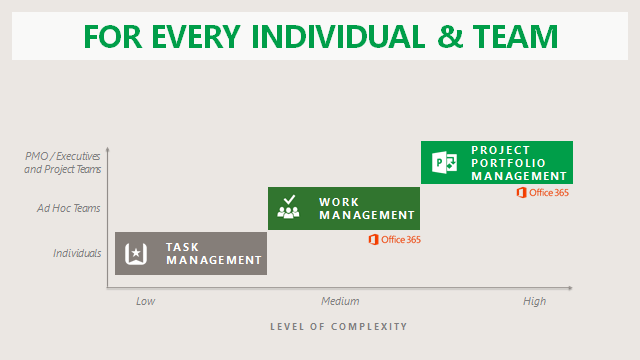


There is a new capability being released to Office 365 called Office 365 Planner (also referred to as Work Management in Office 365). Office 365 Planner will help organizations with teamwork. With Office 365 Planner you have the ability to create new plans, create / assign / organize tasks, set due dates and update statuses. Users have the ability to attach documents to tasks and have conversations around those tasks. There are also visual dashboards to see overall progress of tasks for a plan or across plans.
I really like this new, easy to use application introduced into Office 365. Office 365 Planner (Work Management) is an application that sits between standard Task Management that you get in Exchange Online / SharePoint Online and Project Online. It provides users the ability to quickly create work areas to manage teamwork for ad-hoc projects and the tasks associated to them. Yes, SharePoint Online has provided this type of capability for years, however the new Office 365 Planner capability provides a fresh, new spin to this. It is really simple for an “every day” end users to use. You will have the ability to create tasks quickly, work collaboratively and have visibility into these tasks.

Direction of New
Office 365 Services
As you will notice, Office 365 Planner is a new Suite
capability. Several other services like
these such as Office 365 Delve, Office 365 Groups, Office 365 Video, and Sway
have been introduced as Suite capabilities.
These solutions cannot be purchased individually; they come part of the
value of the Suite. In many cases, you
see these are like composite cloud applications that bring together Exchange
Online, SharePoint Online, OneDrive, Office Online, Office 365 ProPlus, etc. to
deliver a solution. In this specific
case, Office 365 Planner and Office 365 Groups are tightly integrated. When you create an Office 365 Plan, an Office
365 Group gets created. You can also add
an Office 365 Plan to an existing Officer 365 Group.
This is the direction I see going with Office 365. New cloud applications being introduced that
bring together capabilities with consolidated user experiences and solutions.
Features of Office
365 Planner
Here is a quick walkthrough of this new Office 365 Planner
capability.
To initiate the Office 365 Planner app, you
simply need to go into Office 365, click the Launch Planner (the waffle) then
select Planner. Press the Planner tile
and the app will be launched.

Once
you are in, you will see the Planner Hub screen. This where you will see all the plans that
are participating in. All of your plans
are located on the bottom and you can also see your favorite plans (ones you
are probably working on the most) along with a summary of those favorites on
this screen.

Next
you can click on My Tasks where you can see all of your tasks across Office 365
Planner. There are grouped Progress or
you can Pivot it to group by plans. As
you can see it is a simple interface that shows you all the tasks that you need
to work on with a simple format.

To create a new Plan, you simple press the New Plan
button. You provide simple details.
As you will see the Office 365 Planner
capability is directly hooked into Office 365 Groups. When you create an Office 365 Plan, a
corresponding Office 365 Group is created.
This brings in the power of Office 365 Groups which subsequently brings
in a shared Notebook, Conversation, Calendar, Membership management, Files,
etc. So within each plan all of these
other solutions can be used with the Plan to manage files, conversations
calendars, share notes, etc.

Here is the Board View of an Office 365 Plan. You can see all the tasks that have been
created initially grouped by Progress. On
this screen you have the ability to quickly create a task for the Plan.
You also have the ability to drag tasks between
status columns in this screen which will set the status of that task for you.

You have the ability to create your own custom buckets and
then group tasks by those buckets.
It is really simple to see all to the members of the Office
365 Group that has access to this Plan.
You can quickly give people access to the Plan from this screen.
You can even quickly assign someone to a
specific task by dragging their profile picture to the task for assignment.

Within
a task you have the ability to do several things. You can associate a task to a bucket of
tasks, change the status, the dates of the task, enter a detailed description,
assign a color tab indicator to the task to help you find important tasks,
attach files, and have conversations about a specific task.

When
you click on the Chart view for a Plan, you will be taken to this summary screen. Here you can see a report of all the tasks, what
is their status is and who needs to complete what. You can visually see where tasks are running
late and you can quickly take action on them from here.

If you have Outlook 2016 installed, you will have access to
the Office 365 Plan and Group from Outlook.
You can access all the tasks, files, conversations, calendar items, etc.
without having to go to the browser if you wish.
Additionally, there is a mobile experience for
Office 365 Planner consistent with the web browser. You do have the ability to create and manage
tasks on the go from your mobile devices.

Is Customization
Possible?
There is an API around this so there can be customer
integration built to it. You have the
ability to create, assign, update tasks, create plans, etc. for integration to
custom solutions. For instance you have
an application that needs to create task for someone to complete.
References
Office 365 Planner Announcement - https://blogs.office.com/2015/09/22/introducing-office-365-planner/
Office 365 Planner Service Description Reference
- https://technet.microsoft.com/EN-US/library/office-365-suite-features.aspx
Subscribe to:
Posts (Atom)


 Posts
Posts


