Showing posts with label SharePoint Deployment. Show all posts

Sunday, April 10, 2011

Cannot Access SharePoint Web Sites from SharePoint Farm

Issue

Recently was having a pretty rough time configuring eDiscovery on a SharePoint 2010 farm. I did not create the environment and we were experiencing some rather weird issues.

  1. When we are on the Central Admin machine, we cannot navigate to any web application. It was worse, we could not access the web applications from any of the machines in the farm. None.
  2. We thought well not a big deal, the web applications can access to other places. So we went to General Settings to Configure some Send To Addresses. However the validation routine for the addresses would not work.
  3. eDiscovery would flat out not work either. If we went to Monitoring to run the Search and Process job (which runs the eDiscovery piece) nothing would happen. When we go into the ULS logs, the websites where the data was found were not accessible. Again the Central Admin machines could not see the web applications.

Resolution

Well it turns out there was some obscure issue with the configuration of the machines. For some reason a loopback check had been enabled and was blocking the ability to navigate to the sites. We found the following reference (method 1) which resolved the issue - http://support.microsoft.com/kb/896861

So what I learned is you cannot get by not being able to access the web applications from the machines where services are hosted. You will also need to run this configuration on each and every machine in the SharePoint farm if this is an issue.

Tuesday, February 1, 2011

SharePoint 2010 Server Topology Examples

I figured I write a short blog about SharePoint, logical / physical architecture, YET AGAIN!!!

Well I actually received some advice that made me want to tweak my message a little. If you read my earlier blog series on SharePoint 2010 Service architecture you will know how much SharePoint 2010 has changed. Then you may have also read my series on the new SharePoint 2010 Search architecture and found out there have been tons of interesting changes here too.

I had a great presentation from Shane Young (SharePoint MVP) which drove me to write this blog. What I realized is I have to stop thinking about architecting in SharePoint 2007 and take advantage of SharePoint 2010. Heck I should know them given all the new architecture features I have been writing about all this time.

In many SharePoint 2007 implementations, the one service we had much of our planning around was SharePoint Search and the SSP. Now all of those limitations are gone.

I am commonly asked how many servers I need to get started with SharePoint 2010. Now that is a LOADED question because such things as SQL high availability, network, service utilization, enterprise features, etc. which all play into an optimum configuration of SharePoint 2010. There really is no one size fit all. However there is always a good place to start the discussion. Shane Young provided two recommendations which I liked the best.

The Three Server Farm

This one is pretty fun one when you think about. There are a ton of SharePoint 2007 environments out there where there are 3 SharePoint servers and with dedicated SQL Servers. In those cases there are two web front ends and one application server. The one application server runs the index service, maybe something like Excel and the search query services are running on the web front ends. In the SharePoint 2007 days, this gave some good redundancy but with SharePoint 2010 we can do better.

Now one approach you can consider in SharePoint 2010 is just making all three servers the same. Rather novel idea right?

clip_image001

Observations:

  • You now have web traffic distributed across three web front ends.
  • All three servers can support SharePoint 2010 services traffic such as Excel, Visio, Access, etc.
  • Search crawler service should be pretty spiffy because you can configure all three servers to perform full crawling during off hours, and partial crawls depending on how fresh you need to keep search.
  • All three servers can be made redundant from a search perspective by having index mirrors.
  • Search results will actually be quicker because you will have three index partitions that can be searched across simultaneously.

Now I had a colleague point out that this does not fly well because “this does not maximize the separation of services architecture from the web front ends”. I get and completely understand that standpoint but I really do not think that should be a consideration for disqualifying this option. Even though everything is running on each machine, the SharePoint roles / services will continue to run independently in different IIS websites, in separate application pools and with different accounts. There is no reason why you cannot continue to configure it as it if they are running on different machines. This is probably a good thing too because someday you will have to scale SharePoint up to meet demand. Remember you can always scale up by adding boxes or separating services onto their own dedicated machines. All I can say is configure SharePoint 2010 based on your requirements, adhere to best practices, plan as much as you can and do the right configuration for your company.

The Four Server Farm

Now let’s look at a four server SharePoint farm. There will be cases where the three server farm recommendation will not make sense for whatever the valid reason. In this configuration we go a little more “traditional”. In this case, Shane recommend two web front ends and then two application servers.

clip_image002

Observations:

  • We have two dedicated web front ends. Add more if you need to.
  • Application services will run on the same application servers with search. Hopefully they will not interfere with full crawls unless you require dedicated resources for the application services. If you need; just add more application servers.
  • The two application servers give us the needed redundancy we need for search. You will have two crawlers and two index partitions with mirrors to start with.
  • One little trick I was told for this configuration is you should also configure the application servers where the Search crawling component is running to also be web front ends (WFE). Do not load balance them with the other WFEs. Then add the SharePoint site URLs to be searched as entries into the hosts file on the application servers to point back to itself and not to the load balanced URL. What this effectively does is trick the crawler into crawling the WFE on the application server. This will give performance improvements twofold. First the load balanced WFEs where users access content will have no performance issues associated to the crawler crawling content. Second, the load of the network will be reduced because nothing will go across the wire when indexing is occurring.

Additional Notes:

  • High Availability – SQL is a big player in this discussion and you need to read this blog.
  • FAST for SharePoint 2010 - Now if you are going to consider using FAST for SharePoint, I would probably vote for the three server architecture recommendation as a starting off point. Here is a blog series on FAST for SharePoint 2010 if you are interested.

Closing

As I have said, there is no one size fits all. This is just a place to start and based on your plans you will scale up the SharePoint 2010 architecture as needed.

Monday, January 17, 2011

Part 5 - FAST for SharePoint 2010 Service Configuration

In part five of this series, we are going to focus on the SharePoint side of FAST farm configuration.

Configuration of SharePoint Services

After the FAST farm has been set up, you will need to configure the SharePoint 2010 farm to communicate with it. As I mentioned earlier in this blog series this is done through two services:

  • FAST Search Connector service – also commonly referred to as the Content SSA.
  • FAST Search Query service

Before configuring the search components in SharePoint, there is a file that will help. Go to the server where the FAST Administration Component is installed. There will be a file under c:\FASTSearch called install_info.txt. The values within this file will be used in the configuration of the SharePoint services that communicate with the FAST for SharePoint Farm.

FAST Search Connector service

To set up a new FAST Search Connector service, go to Central Administration as normal and create a new service. Add a New Search Service Application and in the FAST Service Application section, select the FAST Search Connector option.

Next you need to specify a search service account – which in this case will be a SharePoint managed service account. As well you need to specific an application pool.

image

Next we need to configure some stuff specific to FAST and this is where information from install_info.txt file will assist us.

As I mentioned earlier, the job of the FAST Search Connector service is to send information to the FAST Content Distributor component which will subsequently feed documents to the various processing components on the FAST farm. As you see below, there is a Content Distributor server name.

As well there is a Content Collection Name. The term “collection” is a carryover from the FAST ESP product. A collection is a logical grouping of searchable documents in FAST. If you like to read more about what a FAST collection is read my old blog here. You only have the ability to specific one collection name. The default collection name is “sp”. You may ask why should I care about this? Well you may have multiple SharePoint farms that are feeding content to the same FAST farm and you may want to logically organize content being fed (i.e. intranet content versus extranet content).

image

Once the FAST Search Connector service has been created, go take a look at the service. You right off the bat that is almost identical to the out of the box search administration, except none crawling links on the left are available. Everything is about crawling.

All you need to do from here is add content sources, set up some crawl schedules and you are off to the races.

image

Below shows the topology of the FAST Connector service (which is only the topology of the SharePoint side, not the FAST side). There is nothing of real interest other than the fact there is an administration component. The crawl component is not the same as the SharePoint Search. It is used to just support the feeding of content but it is not crawling in the tradition sense. There are no SQL performance considerations you have to account for here.

image

FAST Search Query service

Next you need to configure the FAST Search Query service. As I mentioned earlier in this blog, this service has two purposes: to send / retrieve query results from FAST and to perform the People Search. To support the people search, this service includes both indexing and querying.

Just like before, add a New Search Service Application but this time select FAST Search Query. Again you will need to specify a service account; you can probably just reuse the one you created for the connector service.

image

Next you will need to configure two applications pools.

image

Finally there are four configurations for FAST. All of the information needed to enter here are again located in the install_info.txt file we pulled off the FAST Admin server.

image

When it is all done, you will have a service that looks like the following. It looks identical to the out of the box SharePoint search. You will notice that there are both Crawling and Query and Result links on the left. Remember there are Crawling links because People Search is part of this service. You will need to configure everything like you normally would for search service.

image

Finally here again is the search topology for this FAST Search Query service. You see that there are several databases and what not that have been created all to support the crawling and querying.

image

Once we have completed created both of these services, you will see the two FAST Services in the Service Application list in Central Admin.

image

Conclusion

I really hope that this blog series will help you to get started in understanding what a FAST for SharePoint deployment would be like before you go off and do one.

Part 4 - FAST for SharePoint 2010 Farm Configuration

Part four of this series is going to focus on configuration of FAST for SharePoint.

Configuration of the FAST for SharePoint Farm

Now the next question is how to configure this FAST farm because in many instances you know how to do SharePoint but FAST is a foreign concept. Well the configuration of the FAST for SharePoint 2010 farm is not configured through SharePoint 2010 Administration. At a high level, there is an xml file that you need to create that captures what FAST for SharePoint components are configured on which server in the FAST farm. This xml file basically drives the entire configuration of the FAST farm.

In this part of the series I am going to give an introduction and pointers to information on how to configure your FAST for SharePoint 2010 Farm.

The best resource for you to begin your understanding of a FAST for SharePoint is “Deployment guide for FAST Search Server 2010 for SharePoint” located at - http://go.microsoft.com/fwlink/?LinkId=204984. This whitepaper pretty much has it all. This really just a supplementary with some added details.

Understanding this document will go a long ways in understanding the architecture of FAST for SharePoint. At a high level:

  1. There are several service accounts, firewall configuration, IP address work, windows updating, anti-virus and proxy settings you need to do before you can even start the installation.
  2. Next I would make sure you have SharePoint 2010 installed and then make sure that the servers that will host the FAST for SharePoint farm have access to the same SQL environment.
  3. Next you need to install FAST for SharePoint onto each server in the FAST farm. There is a prerequisites installer that you need to run to make sure all the requirement components are on the machine.
  4. Then you need to configure the FAST for SharePoint farm. There are two options: stand-alone or multiple server farm. The stand-alone is as simple as it sounds and you need to go through the configuration steps.
  5. The multiple server farm configuration entails the creation of a deployment.xml file that I referred to earlier. After installing the FAST for SharePoint bits on each server in the farm, you will go through a configuration process which will use the deployment.xml file to activate components on that server. We will take a deeper looking into that shortly.
  6. Next we need to create the FAST Search Connector service in SharePoint Central Administration which will send SharePoint content to FAST. You will need to configure SSL for the communication between the two.
  7. Finally you will need to set up the FAST Search Query service in SharePoint Central Administration which crawls people information and calls the FAST for SharePoint query servers. There is an extra step of this configuration which requires claims authentication to support the call to the FAST query servers.
  8. There are several other steps in this whitepaper that layout how to get the SharePoint search centers set up and to test your installation.

For the remaining parts of this blog, I am going to focus on steps 5, 6 and 7.

Deployment XML File

As I mentioned, the deployment.xml file is the key the deployment the FAST for SharePoint farm. There is no nice GUI that will show you the farm and allow you to configure it. In step five you will install the FAST for SharePoint bits on each server of the FAST farm. Then on the machine that will have the admin component installed on it, you need go through the configuration process. The deployment.xml file will be used. Then you will go to each other server in the FAST farm and configure it using the same deployment.xml file.

Now you see the important of this file and why I wanted to focus on it. I was able to find some good references and examples.

First let’s talk about the deployment.xml file. You need to read this - http://technet.microsoft.com/en-us/library/ff354931.aspx - albeit it may be a boring read however it shows how it works. Below is a listing of the components that I provided in the blog with a mapping to the XML nodes.

  • Administration component - <admin>
  • Document Processing component - <document-processor>
  • Content Distributor component - <content-distributor>
  • Indexing Dispatcher component - <indexing-dispatcher>
  • Web Crawler component - <crawler>
  • Web Analyzer component - <webanalyzer>
  • Indexing component - <searchengine>
  • Query Matching component - <searchengine>
  • Query Processing component - <query>

All of the tags described in the deployment.xml reference are important and several do not map directly components. It was not easy at first to gain an understanding of how this works. The best way to do this is to basically open up the deployment.xml reference and then review some examples of deployment.xml files to really understand how it works.

The following are several places where I found examples of the deployment.xml file:

To save myself time, I am going to pull one of the examples from the FAST Search Server 2010 for SharePoint Capacity Planning document here. I picked this one because it really shows what a FAST Medium size farm that is scaled out. I am not saying this is the best configuration to start off the bat either – read the FAST Search Server 2010 for SharePoint Capacity Planning to find a base farm that best meets your needs and tweak as needed. In many cases a simple three server farm configuration is the best place to start (i.e. a small server farm deployment which was shown earlier in this series). But it would be no fun to talk about J

So here is a picture of a medium farm. As you can see there are:

  • This farm has two rows and three columns.
  • On the first row, document processing components have been spread across multiple servers to provide good content consumption.
  • The first row also really dedicated to indexing as well as the Indexing components will be turned on their along with Query Matching components.
  • The second row is dedicated to searching as there are Query Matching components and Query Processing components.
  • Note that components such as content distribution and index dispatcher have been turned on in the first row.
  • Looking at the very first server in the farm, you may ask why there are query and document processor components are there too? The justification was that they would not be actively referenced by the FAST farm however available if maintenance is being done on the FAST farm.

Now honestly, given all the information I have provided thus far in this blog series, there are a few things I would potentially change in this configuration to ensure that I had a highly available FAST farm. I will get into those changes shortly.

image

Here is the deployment.xml file for this farm configuration above:

<?xml version="1.0" encoding="utf-8" ?>
<deployment version="14" modifiedBy="contoso\user"
modifiedTime="2009-03-14T14:39:17+01:00" comment="M4"
xmlns=”http://www.microsoft.com/enterprisesearch”
xmlns:xsi=”http://www.w3.org/2001/XMLSchema-instance”
xsi:schemaLocation="http://www.microsoft.com/enterprisesearch deployment.xsd">

<instanceid>M4</instanceid>

<connector-databaseconnectionstring>
[<![CDATA[jdbc:sqlserver://sqlbox.contoso.com\sql:1433;DatabaseName=M4.jdbc]]>
</connector-databaseconnectionstring>

<host name="fs4sp1.contoso.com">
<admin />
<query />
<webanalyzer server="true" link-processing="true" lookup-db="true" max-targets="4"/>
<document-processor processes="12" />
</host>

<host name="fs4sp2.contoso.com">
<content-distributor />
<searchengine row="0" column="0" />
<document-processor processes="12" />
</host>

<host name="fs4sp3.contoso.com">
<content-distributor />
<indexing-dispatcher />
<searchengine row="0" column="1" />
<document-processor processes="12" />
</host>

<host name="fs4sp4.contoso.com">
<indexing-dispatcher />
<searchengine row="0" column="2" />
<document-processor processes="12" />
</host>

<host name="fs4sp5.contoso.com">
<query />
<searchengine row="1" column="0" />
</host>

<host name="fs4sp6.contoso.com">
<query />
<searchengine row="1" column="1" />
</host>

<host name="fs4sp7.contoso.com">
<query />
<searchengine row="1" column="2" />
</host>

<searchcluster>
<row id="0" index="primary" search="true" />
<row id="1" index="none" search="true" />
</searchcluster>

</deployment>


Now looking at that deployment.xml file, here are some notes that will help you better understand it:

  • The <deployment> tag is a wrapper tag. It has some attributes for you to manage the version, last modified date, etc. Highly recommend you use these attributes for configuration management reasons.
  • The <instanceid> tag can be used by SCOM.
  • The <connector-databaseconnectionstring> is the location where you specify JDBC connection strings if that connector is being used.
  • The <host> tag is a specific server in the farm. Within the <host> tag is where you identify all of the components that will turned on in a specific server. This where <admin>, <document-processor>, <content-distributor>, <indexing-dispatcher>, <crawler>, <webanalyzer>, <searchengine> and <query> are defined. You can read the specification about these tags as they are pretty straight forward in their configuration.
  • The <searchengine> tag is the most important component tag when comes to understanding how many Indexing and Query Matching servers there are. In the <searchengine> tag, you specify the row number and column number however you do not specify here if the Indexing and/or Query Matching components are turned on. This is done in correlation with the <searchcluster> and <row> tags.
  • The <searchcluster> tag is an important tag that is used to wrap the <row> tag. Earlier in this series I presented a diagram that discusses columns and rows. These <row> tags are used to define the number of Indexing and Query Matching component rows that are being used in the farm configuration.
  • A <row> tag can be defined as a primary, secondary or none using the index attributed. There can only be one primary index row. Marking the <row> tag as primary indicates this is the primary row of servers with Indexing components. Marking the <row> tag as secondary means the row is redundant index row. Finally, marking the <row> tag with the value of “none” means there is no Indexing components on this row.
  • The <row> tag also has an attribute called search which can be true or false. If marked true, Query Matching component is deployed on that row.
  • So here are some examples of the <row> tag which find critical to understanding the deployment. There are more permutations however these are the ones you will run up against the most:
    • <row id="0" index="primary" search="true" /> - this means this is a primary row with the Indexing component. As well there are Query Matching components on that row.
    • <row id="0" index="primary" search="false" /> - this means this row is completely dedicated to indexing.
    • <row id="1" index="secondary" search="true" /> - this means this second row has redundant Indexing components and the primary purpose of this row is for Query Matching components.
    • <row id="2" index="none" search="true" /> - this means this row is completely dedicated to Query Matching components only.
  • The <row> tag is tightly correlated back to the <searchengine> tag. Having a <searchengine> tag defined for <host> tag indicates that row will have Indexing and/or Query Matching components. As you can see, the <row> tag actually controls which one is active on that server.

As I mentioned earlier, I believe there are some changes I would make to this farm to ensure there is some redundancy. For instance I would change the <row id="1" index="none" search="true" /> to be <row id="1" index="secondary" search="true" />. The reason being is if the index server were to fail, the query server in that columns would redundantly become the index server until the other server were fixed. Now you could experience some query performance issues while this is going on if you have high volumes of content that are being consumed.

The way the redundancy works is FIXML document (which is the searchable representation of every document in the index) will be replicated to the second row. However an index will not be actually built from the FIXML document. When an indexing component fails, a new index will be built using the FIXML documents on the redundant Index row.

Once you start to get the hang of it, this deployment.xml file is not too hard.

When you have completed an installation on a specific machine, run the following command

nctrl status

This will return the status of all the FAST components that are running on that machine.


image

Another thing you can do is go into the services console and check out the FAST services.

image

In the next part of the series I am going to focus on the SharePoint side of the configuration.

Part 3 - FAST for SharePoint 2010 Physical Architecture

Part three of this series will now focus on the physical architecture of FAST for SharePoint farm deployment.

Physical Architecture / Topology

Now am going to take what we have learned about the logical architecture and scaling and apply it to some farm scenarios. From what I know, scaling a FAST for SharePoint 2010 farm is a similar to scaling a SharePoint 2010 farm. We basically need to analyze the requirements and the scale the FAST components appropriately to meet those requirements. Some of the immediate ones will come up are:

  • How much content needs to be searchable?
  • What is the total number of items that need to be searched?
  • What is the format, size and any other interesting characteristic of the items to be searched?
  • What sort of availability is needed to support search?
  • How fresh must the search results be and how often is content changed?
  • How many users will be performing searches concurrently?

This is probably just a starting point. I actually wrote a set of questions that need to be asked here.

Up this point we learned about the FAST for SharePoint components such as:

  • Administration component
  • Document Processing component
  • Content Distributor component
  • Indexing Dispatcher component
  • Web Crawler component
  • Web Analyzer component
  • Indexing component
  • Query Matching component
  • Query Processing component

We have also learned about how they scale. Now honestly, it is pretty much impossible for me to give you all the examples out there on how to scale FAST. So I am going to pick ones (which I shamelessly already have pictures for) and discuss those J

Minimum Deployment

This following is a very basic, non-redundant implementation of SharePoint 2010 and FAST for SharePoint 2010. It is never really commended to install both on the same machine unless you are creating a local development environment. In both of these scenarios there really is no scale other than SharePoint and FAST are on different machines.

In the case of FAST all of the core components such as admin, document processing, content distributor, index dispatcher, web analyzer, indexing, query matching and query processing are all deployed to a single machine.

image

It is interesting to note here that SQL is not heavily utilized by FAST for SharePoint. FAST only needs to access configuration information from SQL. This is different than the out of the box SharePoint 2010 Search which heavily utilizes SQL as part of the indexing and querying process.

Small Deployment

The following is considered to be a small deployment of FAST for SharePoint. You will notice there is both a SharePoint and FAST farm. I am not going to discuss the SharePoint Farm; you can read my blog on how to scale SharePoint 2010 farms. However let’s look at the FAST for SharePoint 2010 Farm. As you can see there are three boxes.

image

The first box:

  • Has the Administrative component which can only be installed on one machine in the farm.
  • Has the Content Distributor which is responsible for routing documents to document processors.
  • Has a Document Processor component with 12 processes running. The more processes you have running the more content can be consumed. The number of processes that can be supported on the machine is available cores on the server.
  • Has an instance of the Web Analyzer running.

The second box:

  • Has an additional document processing component.
  • Has the index dispatcher component which is responsible for sending processed content to be indexed.
  • Has the indexing component, query matching and query processing components installed.

The third box:

  • Has redundant indexing component, query matching and query processing components.

In the end this is a really simple / standard implementation that can handle in the range of 10+ million items and managed about 10 queries per second.

Medium Deployment

This is a medium sized FAST for SharePoint deployment. This should be able to index roughly 40 million items and continue to support 10 queries per second.

image

Observations:

  • The first two FAST servers have all the administration, content distributors, and web analyzer components. It has also document processing components.
  • The following six servers have been configured used columns and rows patterns I introduced earlier.
  • There are three index columns to partition the content to allow for a higher volume of content than the previous.
  • On the first row we have additional document processing components. This will improve consumption and processing of content. Plus it adds redundancy.
  • As well on the first row index dispatching and indexing components have been installed.
  • On the second row are secondary indexing components which are redundant copies of the indexes on the first row. It is not exactly clear in the diagram but the query matching and query processing components are configured. This way there are dedicated machines to support the querying of content.

Large Deployment

This final farm is very similar to the previous other than some of the administration components have been scaled to a third server and there are now a total of six index columns to support up to 100 million searchable items.

image

As I said before, this is by no means the only three configurations of the FAST for SharePoint farm. These components can be scaled however to best meet the requirements.

References

Wednesday, December 29, 2010

SharePoint 2010 Search Configuring for Scale

This is the third part in my series on SharePoint 2010 Search Architecture.

SharePoint 2010 Search Scaling Configuration

Now if you have been reading this far you may be think this is really hard to configure. Well it is actually very simple. I am going to skip the step of setting up the SharePoint Search Application instance. I am going to give you a quick introduction to the screens you need to know about to scale SharePoint 2010 Search.

Note the screenshots because are just off my single server development box, so I cannot show you the nice screenshots with different server names.

Search Application Topology Screen

This is a screenshot of the Search Application Topology in Central Admin. Here you can see:

  • The Admin Component and what machine it is configured to run on.
  • Crawl Components – in this case I only have one and the machine that is configured to run on. Notice the name of the crawl database is shown so you can quickly see which Crawl Component maps to which crawl database.
  • Databases – lists all of the search databases associated to this Search Service Application instance.
  • Index Partition – Shows the single index that has been created and the query component for that partition.
  • You will notice there is a Modify button. Pressing that button will allow us to make changes.

clip_image001

Search Modification Screen

This screen shows the same information as above but there are a few differences

clip_image002

  • There is a New button in the top left had corner. This will allow us to create new crawl databases, crawl components, query components/index partitions, index partition mirrors and property databases.
  • Note there is an Apply Topology Changes button in the bottom right which allows us to make all of our changes at one time.

clip_image003

New Crawl Component

On this screen you basically just select the server on the farm where you want to install the crawl component. Then you need to select the crawl database for the crawler component; that is it.

Remember you can have multiple crawler components installed on the same machine. It would not make much sense to have two crawler components on the same machine that I using the crawler database.

clip_image004

Reference - http://technet.microsoft.com/en-us/library/ee805950.aspx

New Query Component

This is where you create new query components. Remember when you create a new query component; a new index partition is created. The SharePoint Search Service will have the responsibility to ensure that each index partition has an even distribution of items.

Here you select what server it will be installed on and you select the property database that will be used. The location of the index file is important; it needs to be in a location that is biggest enough to handle the index.

clip_image005

Reference - http://technet.microsoft.com/en-us/library/ee805955.aspx

New Query Component / Index Partition Mirror

To create a mirror, back on the Modify Topology screen, if you hover your mouse over the Query Component link, a dropdown will come up saying “Add Mirror”.

clip_image002[1]

This will allow you to pick a server for where you would like to create a mirror. Remember there is now real point in creating a mirror for an index partition on the same server where the partition resides. The same sort of screen will come up as the as when adding a new query component. The checkbox at the bottom “Set this query component as failover-only” is important. If this is checked, the mirror will only be redundant. If not checked, the mirror will be used as part of the query process.

Reference - http://technet.microsoft.com/en-us/library/ee805953.aspx

New Crawl Database

This is the screen where you create a new crawl database. Here you simply just fill out the basics, not much to it.

One example of why you may need a second is to support dedicated search resources to specific content sources. If you want to do that, you have to make sure to check the checkbox below. If you do not, the new crawl database will simply be used as a new crawl database along with other existing ones you have. After you check the box below, you will need to apply the changes then perform some steps like creating a new content source and host destination rules which will map content sources to crawl databases.

clip_image006

Reference – Crawl Database - http://technet.microsoft.com/en-us/library/ee805952.aspx

Reference – Host Destination Rule - http://technet.microsoft.com/en-us/library/ee805949.aspx

New Property Database

Finally there is an option to create new property databases; nothing special about this. If you were to do this, you may have to go back and reconfigure you existing query components to use this new property database. That will in turn re-create your index partitions underneath the hood and as well require you to create new index partition mirrors. All in all, not a big deal, just a few extra steps.

clip_image007

Reference - http://technet.microsoft.com/en-us/library/ee805954.aspx

Series References:

Scaling SharePoint 2010 Search

This is the second part of my series on the architecture of SharePoint 2010 Search.

SharePoint 2010 Search Component Scaling

As I mentioned the SSP was one of the biggest constraints to SharePoint 2007 Search’s ability to scale. Now that is gone, we have a ton more flexibility.

Let’s talk about the components I introduced earlier and how each are commonly scaled.

Crawler – There can be multiple instances of the crawler component within a single search application service. This will allow you to more efficiently crawl content based on the scenario you need to support.

One example would be adding a second crawl component (on a different server) to improve the performance of performing a crawl. As I mentioned the crawl component is stateless and data about what has or has not been crawled is stored in the crawl database. So you can create multiple crawl components that are configured to use the same crawl database which will help with the performance for building the index (i.e. multiple crawlers running in parallel).

Another example would be you want to dedicate higher end machines with crawl components to particular content sources. For instance let’s say there is content to be indexed on SharePoint and in File Shares, and there is significantly more data on the File Share. You have the ability to create new crawler components that has a dedicated crawl database. Using host distribution rules, you can configure a new crawl component and crawl database to only crawl content in the File Shares while others crawl SharePoint content.

Some other guidelines you should be aware of are:

  • There should be at least 4 cores dedicated for each crawl component running on a server.
  • Not recommended to have more than 16 crawler components in a single Search Service Application.

Crawl Database – Multiple instances of the crawl database can be created to support different scaling scenarios as just mentioned. It is not recommended to have more than 25 million items in a single crawler database and no more than 10 crawl databases per Search Service Application.

Query Component – In SharePoint 2007 we had the ability to run multiple instance of the query component on each load balanced WFE so we had the ability to some scaling. We now have more granular control of how we scale out multiple query components. We still have the ability to create multiple instances of a query component for redundancy purposes.

Index Partition – As I mentioned the Index Partition was added to allow for queries to perform more efficiently. Each query component has an associated partition. Whenever a new partition is created, a new query component must be created as there is a one-to-one relationship between the query component and the index partition. There is an emphasis to ensure that each index partition is evenly balanced with documents (a hash algorithm is used based on the document id).

For example, let’s say you have 2 million documents in your single index and it takes 1 second to return the results. If this were split into two partitions with two query components, the time to complete the search is cut in half because now there are two query components only search 1 million documents.

Couple Notes:

  • It is not recommended to exceed more than 20 index partitions within a single Search Application Service instance; even though the hard boundary is 128 index partitions.
  • There is a hard limit of 10 million items that can be in any index partition with SharePoint 2010 Search, and it is not recommend exceed 10 partitions (100 million items). If you are exceeding that many items, you will probably look into separating search into multiple search service instances or look into using FAST.

Index Partition Mirror – Earlier I introduced the content of index mirrors as a way to provide redundancy and better performance. The mirror is how it sounds; it is an identical copy of the index. When mirrors are used, you basically now have a one-to-many relationship between the query component and the index partitions but there will only be one primary partition. The mirror partitions can be used a way to provide redundancy so if the machine that is hosting the primary partition was to fail, the mirror will become primary. Also, the mirror can be configured so it can be search against as well to help support scenarios where there is a load of queries being made.

Property Database – There can be more than one property database created in the farm to again support scaling and query performance. It is recommended that once there 25 million items that have been indexed, a new property database should be introduced into the solution architecture. This is because with that many items, a significant amount of metadata will be created and the property database is responsible for managing that metadata for search queries. This is not hard limit; just a recommendation.

It is also recommended to separate the Property and Crawl databases to separate storage to remove I/O contention that can occur when there are both crawls and queries executing at the same time. This is because the property database is highly utilized as part of the querying process. If full crawls are done during off hours and incremental crawls are not very intensive based on the amount, this should not be an issue.

Search Admin Component – There is no capability to scale this; not needed either.

Search Admin Database – Since I mentioned this earlier, I will mention it to be consistent. There is no capability to scale the search admin databases since there can only be one per Search Application Service instance. You can create redundancy at the SQL Server level.

SharePoint 2010 Search Scaling Scenarios

Up to this point you have been consuming a lot of information about what the new SharePoint 2010 Search components are and how they can scale. It is a lot to take in. What I personally like to do is start with the most basic scenario and then scale out from there.

I am going to focus each scenario based on the number of items to be searched.

To save myself time, I am going to re-use several of the diagrams that are provided to us here - http://technet.microsoft.com/en-us/library/cc263199.aspx. Specifically I am using diagram from “Search Architectures for Microsoft SharePoint Server 2010” and “Design Search Architectures for Microsoft SharePoint Server 2010” diagrams. I highly recommend reading both of these in detail once you have finished reading my blog as re-enforcement.

Scenario 1 – 0 to 1 Million Items

This is probably one of the most basic scenarios but according to Microsoft either of the farms can support this many documents.
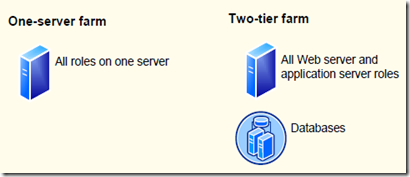
clip_image001

HOWEVER I would never recommend these two environments for production where a Service Level Agreements (SLAs) might be in place because it is not a redundant. I would expect out of the gate, to minimally have something like below. This is a best practice from SharePoint architecture perspective to have your Web Front Ends (WFEs) and Application Servers on different machines. As well, you typically have the search service dedicated to its own Application Server as to not create contention with other services that may be running in the farm.
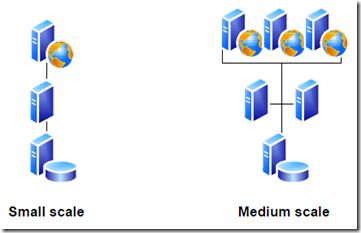
clip_image002

I think the point at the end of the day is that a single application server, that running all of the Search components we described earlier, can support up to a 1 million items. So if you are running a small SharePoint production site, where SLAs are not stringent, you should be fine using search on one application server for up to 1 million items.

Scenario 2 – 1 to 10 Million Items

In this scenario is we now have a few million items and at the point where scale must be introduced. This is referred to as a Small Search Farm.
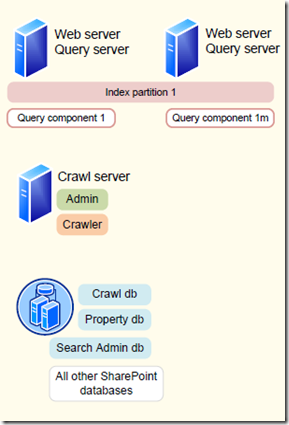
clip_image003

Observations:

  • There is a single crawl server with a single crawl component that builds a single index of all content.
  • There is a single database server used where the crawl, property and admin databases are hosted.
  • There are two query servers and they have been configured to run on each web front end (WFE). This means the WFE needs to have enough space to store the index.
  • There is only one index partition created by the crawler where all of the indexed items can be found.
  • There is one primary query component and there is one mirror query component. All the queries will go against primary query component and will failover to the second.
  • One question you may have is will only having one active query component become performance bottleneck? The answer is it could if you have a website with a lot of users performing concurrent queries. Remember you can configure the query component mirror to accept queries.

Scenario 3 – 10 to 20 Million Items

Next we have a scenario where we have roughly 10 to 20 million items to be indexed and we want to start scaling the architecture. This is the one that many organizations will use to start with because it scaled for redundancy and performance. So even though you may not have that much content right off the bat, you will be able to grow into it.
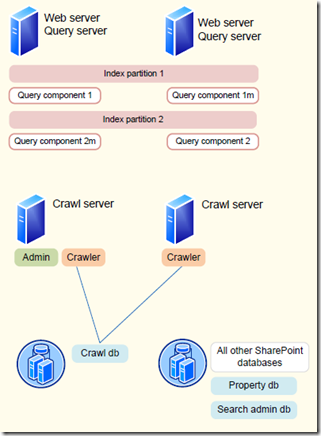
clip_image004

Observations:

  • There are now two crawler components that reside on different machines. The two crawler components that work with a single crawl database in parallel to build up the index. This also adds a level of redundancy if one of the crawl servers were to go down.
  • There are now to partitions of the index, mostly based on 10 million item limit for each index partition. The need for two index partitions will require that two query components are created. The primary for each query component is installed on a different Query Server with the query mirror installed on the other machine. The net effect of this is query time will be reduced because the query component does not have to search the entire index; it only has to search half the index.
  • The Crawl and Property databases have been split apart onto different servers. This is because contention can be created between them when crawling and querying occurs concurrently. I really think this is probably one of the last things you need to do to improve performance if you have a highly available SQL Server production environment. This will only help when there are database load issues, there are more than 25 million items or there is a significant amount of metadata that has been built up.

Scenario 4 – 20 to 40 Million Items

In this next diagram the amount of content is dialed up to 20 to 40 million items.
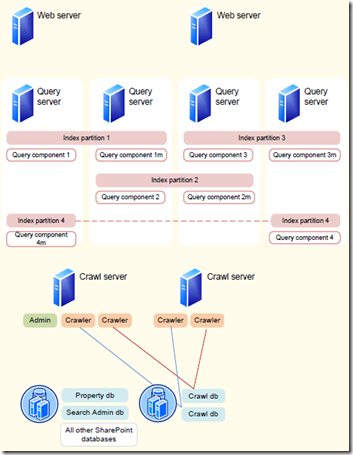
clip_image005

Observations:

  • This is still actually referred to as a medium farm but it is called a dedicated farm because the Query components are no longer hosted on the web front ends. The query components are not hosted on individual machines.
  • Next you will notice there are now four index partitions for the corresponding four query components. As well, the mirror for each query partition is placed on a different query server.
  • Next notice there are now two crawl databases and four crawler components. Two crawler components are dedicated to each crawler database. This configuration supports the ability to have different crawler components search different content sources. For instance one set of crawl components may search SharePoint while the other set search MySites, File Shares and Public Exchange Folders. The point is that if you have scaled up to searching this amount of content is likely that you will be breaking about how content is indexed for performance reasons.

Scenario 5 – 40 to 100 Million Items

Last is a fully scaled out SharePoint Search Application service instance.
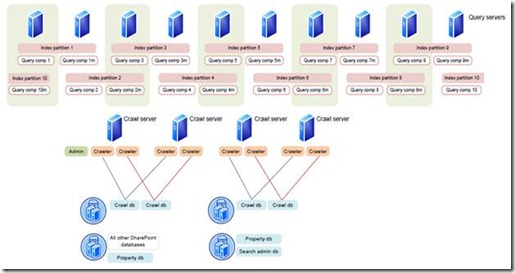
clip_image007

Observations:

  • This is a fully scaled out farm based on the recommended capacity for SharePoint 2010 search, being 100 million items. As you can see there are now ten index partitions.
  • There are several crawl components and crawl servers.
  • Crawl databases have been broken into multiple database servers.
  • Multiple property databases on different database servers.

Personally I am not sure how common you will see something like this. Do I believe more than 100 million items will need to be indexed by SharePoint? Yes – I do believe that will happen in large environments. However you may employ a strategy where you have:

  • Multiple Search Application Service instances in the farm with less data being indexed by each.
  • There may be a central hosted search farm while smaller farms have their own search configuration.
  • And when you need to provide a single user search experience where more than 100 million items need to be searched; FAST can be utilized. I want to point out that even if you have less than 100 million items to be indexed FAST should still be considered. This is because there is a ton of search and usability features available in FAST which is not available in the out of the box SharePoint search.

Closing

To this point I discussed only how to scale based on the number of items to be indexed. However that is not really an accurate way to build a SharePoint 2010 Search architecture. In many cases business rules or other environment factors can drive how search is architected. Here are some examples:

  • Connectivity to specific content locations is slower in some cases. What you may do is add dedicated crawler components and databases just for indexing this specific content.
  • Content that is indexed must be fresh and full indexes are needed on a regular basis. In this scenario you will again add more crawl components.
  • There is a significant amount of users who will query. In this case, you may only have 5 million items but you may have two or even three query components dedicated to their own machines.

Hearing these examples, you should take the information above and start scaling out based on the business requirements and SLAs you need to support.

My personal recommendation is probably start with scenario 3 and make any tweaks to the configuration based on what you need for a production environment that needs to support growth and redundancy. However adding new components later is no big deal either.

Now that you have finished reading this – I highly recommend you read both of these:

SharePoint 2010 Search Architecture Introduction

Introduction

Every time there is a major version release of SharePoint there is always a major improvement in the area of Search. Users need to have the ability to search for content and the users demand the same sort of user experience they have with their everyday search engine. Microsoft really stepped up to the plate this time with SharePoint 2010.

SharePoint 2007 introduced tons of new features that were not available in SharePoint 2003. For instance searches could be done across site collections, it actually returned back correct results, scopes, best bets, search analytics, search federation, business data catalog (searching external line of business systems), a search API, etc. Still however there were some challenges. Scale would become an issue because SharePoint 2007 had exponential growth due to its ease of use. The Share Service Provide (SSP) and the way it is architected was a contributing factor. For instance an SSP could only have on crawler which provided no ability to control large amounts of content. As well, users were demanding for the same sort of user experience they have with Bing, Google, etc.

For SharePoint 2010, there is a lot of improvements.

  • There is the new Service Architecture of SharePoint 2010 and the removal of the SSP. Read this blog. As you will see this now enable SharePoint 2010 Search to scale and that will be the focus of this blog.
  • The ability to index 100 million items.
  • Continued support for indexing file shares, external web sites, line of business systems, public exchange folders, etc.
  • Boolean search (and, or, not) are supported.
  • Range symbols such as =, <, >, <=, and >= can be used.
  • Wildcard searches are now supported out of the box.
  • Support for property based searches on the metadata (title:“XXX YYY”).
  • Improved relevancy mode like Phrase matching and clickthrough counts.
  • Refiners which provide the ability filter down the search results using the returned metadata without have to re-run the actual search.
  • Did you mean feature which provides suggestions – like in the case the user misspells a word.
  • Search suggestions which provides an auto complete based on what the user commonly searches on.
  • Search Alerts and RSS Feeds
  • Improved query federation
  • More extensible search web parts How
  • Several new administration features
  • Mobile search

Another major Search improvement is Microsoft’s acquisition of FAST Enterprise Search. Microsoft spent over $2 billion to acquire one of the most high enterprise search engines on the market and incorporate it into the SharePoint platform. The goal of this blog is not to do a feature and architecture comparison with FAST. I may do one in the near future. At a high level you should know that FAST has:

  • Limitless scalability. Can search and return results in sub-second times over petabytes of data.
  • High scale search refiners.
  • Extremely powerful and tunable search relevancy model.
  • User contextual search results and relevancy.
  • Entity extraction.
  • Ability to index almost any type of content imaginable.
  • Similar search result suggestions.
  • Thumbnails and document previewing in search results.
  • Visual best bets.

Still getting your arms around the OOB of the box search if you are familiar with SharePoint 2007 search can be daunting task. I was able to pull together a bunch of information and I am going to consolidate this down for you.

  1. I will capture the new components for SharePoint 2010 Search.
  2. I will then discuss how each component can be scaled.
  3. I will then discuss scenarios on SharePoint 2010 Search is scaled.
  4. I will actually show you how simple it is do the scaling of SharePoint 2010 Search.

SharePoint 2010 Search Components

Let’s first talk about all the new components and architecture you need to know about right off the bat.

Crawler – You will hear about this a lot; it is commonly referred to as the crawling component or indexer. It is responsible for building indexes. Unlike the previous version of SharePoint the crawl component is stateless; meaning the index that is created is not actually stored in the crawl component. The index is pushed to the appropriate query server.

Crawl Database – As you just learned, the crawling component itself is stateless. State is actually managed in the crawl database which will track what needs to be crawled and what has been crawled.

Query Component – This is the component that will perform a search against an index created by the crawler component. The query component will apply such things as security trimming, best bets, relevancy, removes duplicates, etc. It is also commonly referred to as the query server.

Index Partition – Is a new feature of SharePoint 2010 and is directly correlated to the query component. We now have the ability to break the indexes into multiple partitions to improve the amount of time it takes to perform a search by the query component. For every query component there will be a single index partition that is queried by the query component. Another way of putting it is, every time a query component is created, another index partition is created.

Index Partition Mirror – There is a new capability to create mirrors of the index partitions. These mirrors again provide the ability to provide redundancy and better search result performance.

Property Database – Stores metadata and security information items in the index. The property database will be associated to one or more query components and is user as part of the query process. These properties will be populated as part of the crawling process which creates the index.

Search Admin Component – The admin component that manages the configuration of the instance of the Search Application Service.

Search Admin Database – It is worth noting there is a search administration database and it mostly responsible for managing information associated to the configuration and topology of the SharePoint Search service. There will only ever be one instance of this database for each Search Application Service instance.

Now that I have introduced you to the major components of SharePoint 2010 Search, I will dive into details about the components and how they can be used together to create search solutions.